Space Works Organization · Start here
Quickstart for platform operators
Install Space Works Organization on a server, create the super admin, sign in safely, and set up email, sign-in and the first organisation.
1. Choose where to run it
Most operators start with one Linux server running Docker. Managed cloud services, a Netlify website and a free Cloudflare route are also supported.
| Layout | Guide |
|---|---|
| One server (VPS) | Deploying on a server |
| Managed services | Deploying with managed services |
| Website on Netlify | Netlify |
| Free, behind Cloudflare | Cloudflare |
For help deciding, read Choose your hosting.
2. Install
On a 64-bit Linux server, as a user with sudo:
curl -fsSL https://raw.githubusercontent.com/SpaceWorks-Labs/SpaceWorks-Organization/main/install.sh | bash
The installer asks every question first, shows a summary and changes nothing until you confirm. Have these ready:
- a domain pointing at the server, with ports 80 and 443 open, if you want HTTPS;
- an SMTP relay on a verified sending domain;
- the email address and password for your super admin.
From a checkout instead, run bash setup.sh (Linux, macOS, Git Bash) or setup.ps1 on Windows with Docker Desktop. Add --build to build the image from source.
Run the same curl command again later for the menu: update, back up, roll back, check health, change settings, recover super-admin access and more. See Updates and rollback and Backups and restore.
3. Create the super admin
The installer creates the first super admin from the email and password you give it. Every other change to super admins happens on the server, never in the app and never by email:
bash scripts/admin.sh create --email you@example.org        # make or promote a super admin
bash scripts/admin.sh set-password --email you@example.org  # change a super admin's password
bash scripts/admin.sh reset-mfa --email you@example.org     # remove a lost authenticator
bash scripts/admin.sh revoke --email you@example.org        # take super-admin access away
bash scripts/admin.sh list
Warning: There is no in-app or emailed way to make a super admin or reset their password. Keep server access safe, and keep super admins few.
See Super admins in the server guide.
4. Sign in
- Open
/loginand sign in with the super admin's email and password. Super admins use password sign-in only. If password sign-in is switched off for everyone else, use/login?admin=1. - Turn on an authenticator app under Account, Security (
/account/security). It is required before you can open any organisation's dashboard, and it protects the account that reaches every organisation. - Open Super admin at
/super-admin. Anyone who is not a super admin gets "not found" there.
5. Set up the platform
| Task | Where |
|---|---|
| Platform email provider (SMTP, Amazon SES, Resend or Postmark) | Super admin, Settings |
| A switch for each sign-in method (password, Google, Apple, GitHub, OpenID Connect, SAML, Supabase, Firebase, passkeys, phone codes), and single sign-on providers | Super admin, Auth |
| Sign-in provider credentials, such as Google, Apple and GitHub | Super admin, Settings |
| Whether new users can create accounts | Super admin, Auth |
| SMS provider for phone codes (Twilio or MSG91) | Super admin, Auth |
| Platform channels for member reminders | Super admin, Messaging |
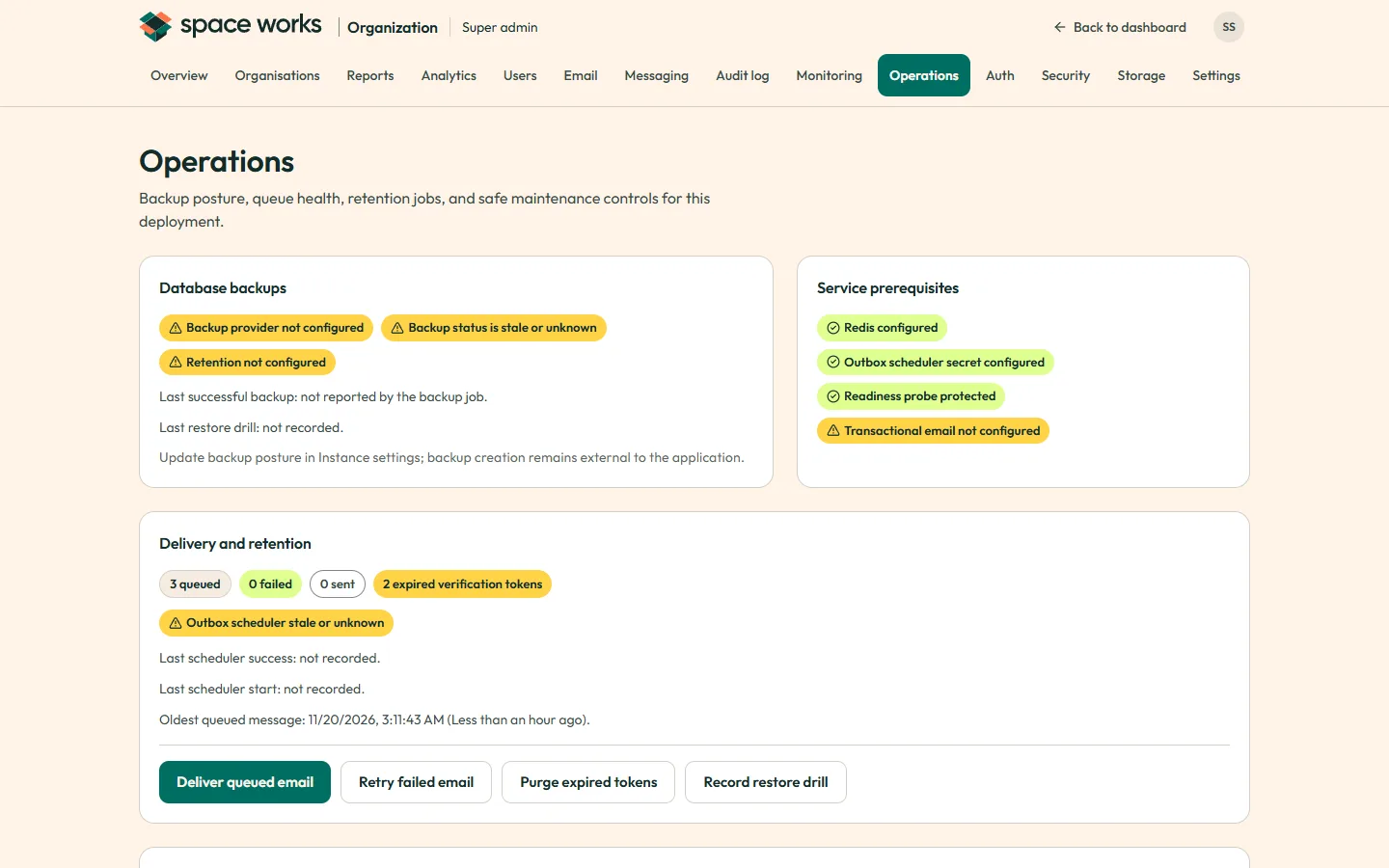
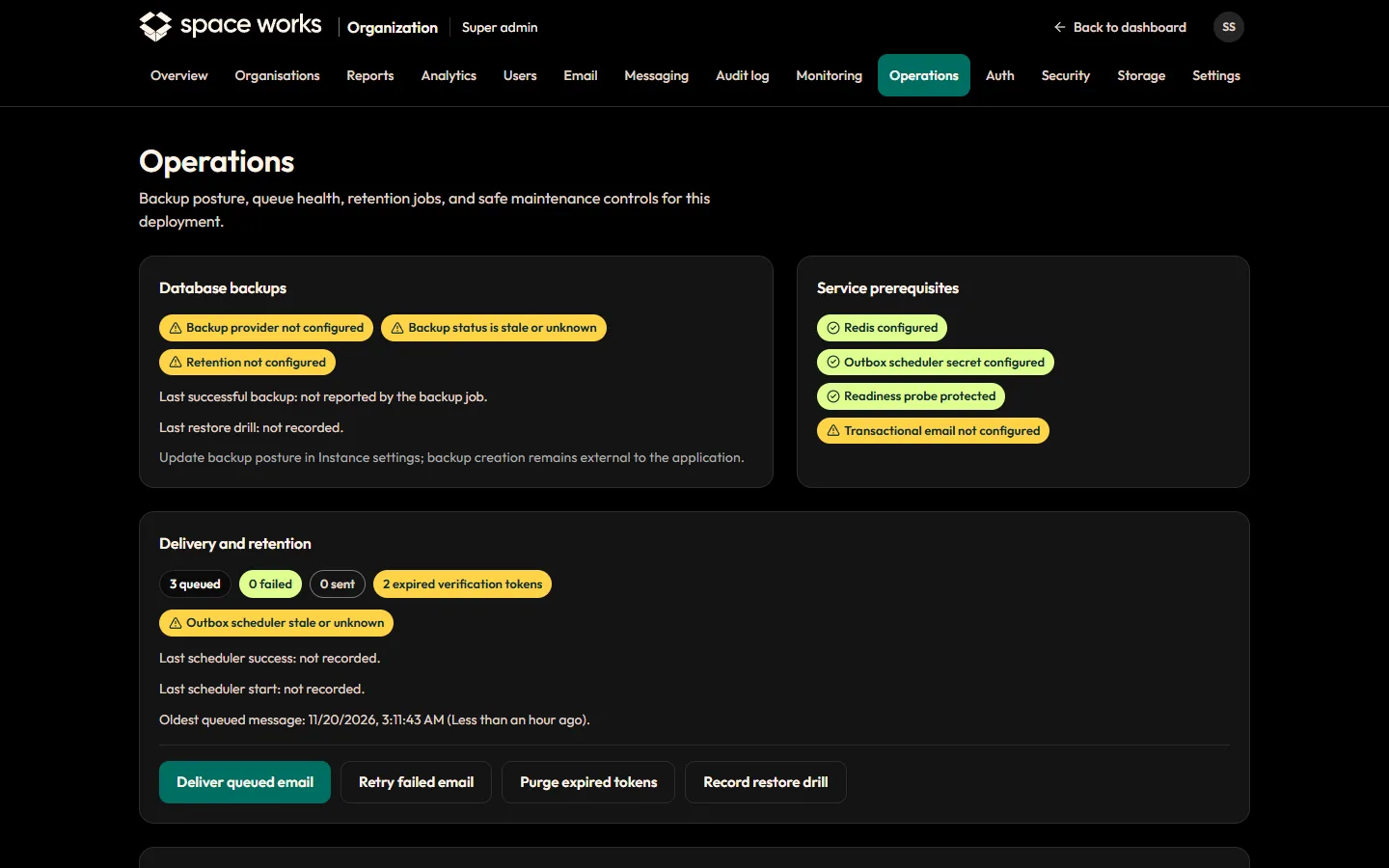
| Backups, queues and maintenance | Super admin, Operations |
| Health checks | Super admin, Monitoring |
Password sign-in is on by default. Every other method stays off until you switch it on and configure it. See Sign-in, Email and chat notifications and Configuration.
6. Add the first organisation
On Super admin, Organisations (/super-admin/orgs) you can:
- switch "Taking applications at /start" on or off;
- review applications: Approve, Ask for changes or Decline (asking for changes and declining need a note to the applicant);
- choose Add an organisation (
/super-admin/orgs/new) to skip the application. It starts active and its owner is invited by email.
On an organisation's page you can also list it in the public directory, set its member and team size limits, and later Suspend, Reactivate or Archive it.
Next steps
- Super admins manual for every Super admin screen.
- Monitoring and health and Security.
- Quickstart for organisation owners to pass on to your first owner.
From SpaceWorks-Organization/docs/guides/start/quickstart-operator.md at 7cd1441, updated 2026-11-21. Suggest a change