Space Works Organization · Features
Units
Units mirror how an organisation is really arranged, such as areas, districts and branches, with levels and names it chooses itself.
What it does
- The organisation names its own levels, top first, up to four of them, for example "Area" then "Unit". Nothing about the levels or their names is fixed by the product.
- It builds a tree of units under those levels. A member belongs to one unit.
- Each unit has a code of 1 to 6 capital letters or digits, unique in the organisation. Left empty, the code is made from the unit's name (North Zone becomes NORTHZ, or NORTH2 if that is taken).
- Join links carry the code (
/o/<slug>/join/<plan>?unit=CODE), so people join the right unit without choosing it. - Card number patterns can print unit codes:
{UNIT}for the member's own unit, or{U1}to{U4}for the unit at each level. A member with no unit at that level prints NA. - A plan can be limited to some units. It is then offered in those units and everything below them.
- Each unit can have its own payment instructions for offline payments. A unit without its own uses the nearest unit above it, then the organisation's.
- Each unit can have its own email, phone and website. They print on the card backs of its members, and show on the unit's public page. A detail left empty comes from the unit above, then from the organisation.
- Each unit has its own public page at
/o/<slug>/a/<CODE>, with the organisation's plans that the unit offers, its numbers and its contact details. - A unit can also have its own member card design and card numbers; see member cards.
- Staff can be limited to one unit, and then see and act only inside that unit and the units below it.
Rules that keep history safe
- A unit moves only to another parent on the same level as its current one, taking everything under it. Levels never change, members keep their unit, and reports follow the new place.
- Card numbers never change when a unit moves or its code changes: unit codes are read once, when the number is made.
- Archiving a unit archives everything under it. Members keep their unit for history, but new members can't join an archived unit and its join links stop.
- Restoring a unit needs the unit above it restored first.
- A level can't be removed while units sit at that depth. Archive them first.
- An organisation can have up to 2,000 units.
Name your levels
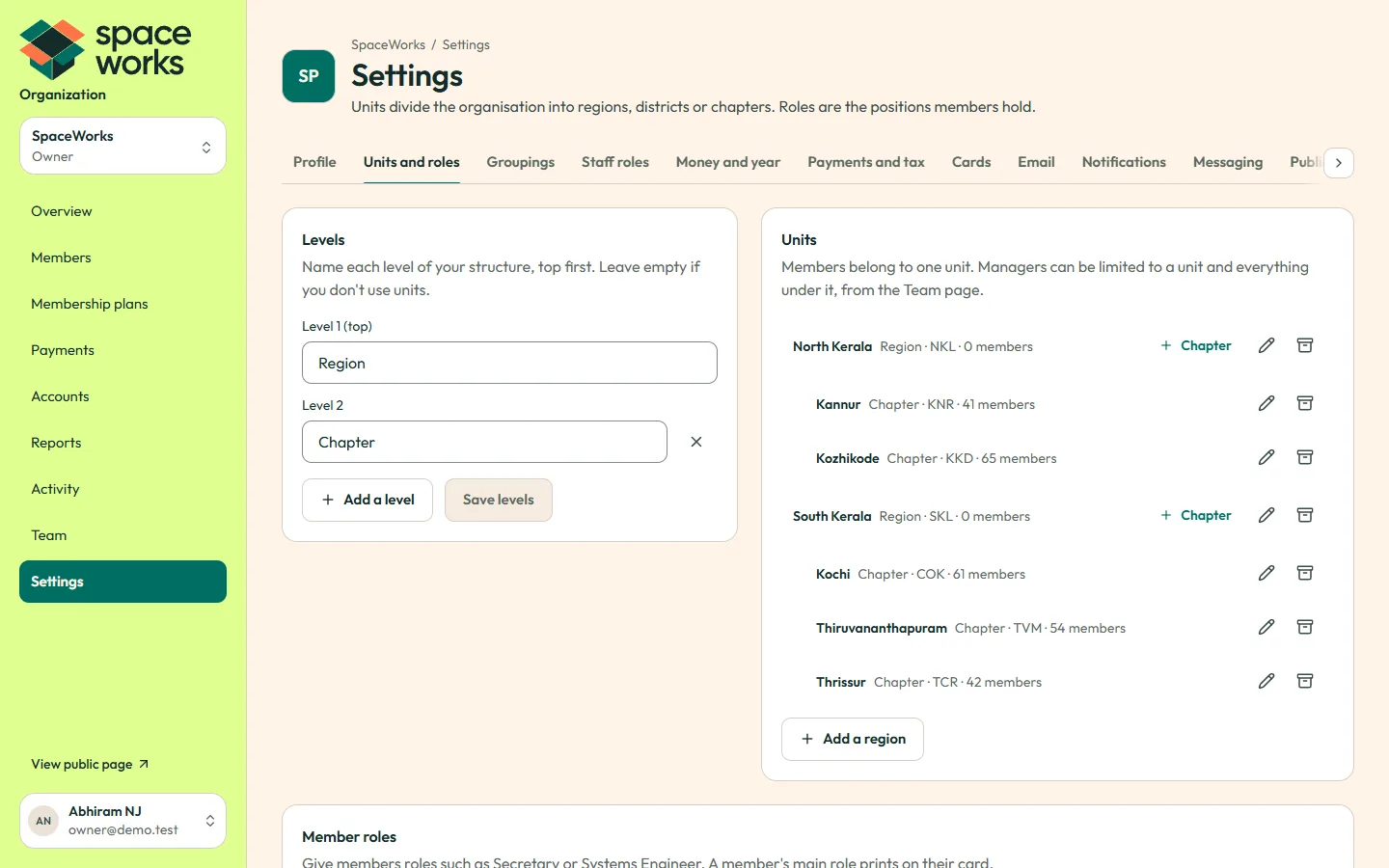
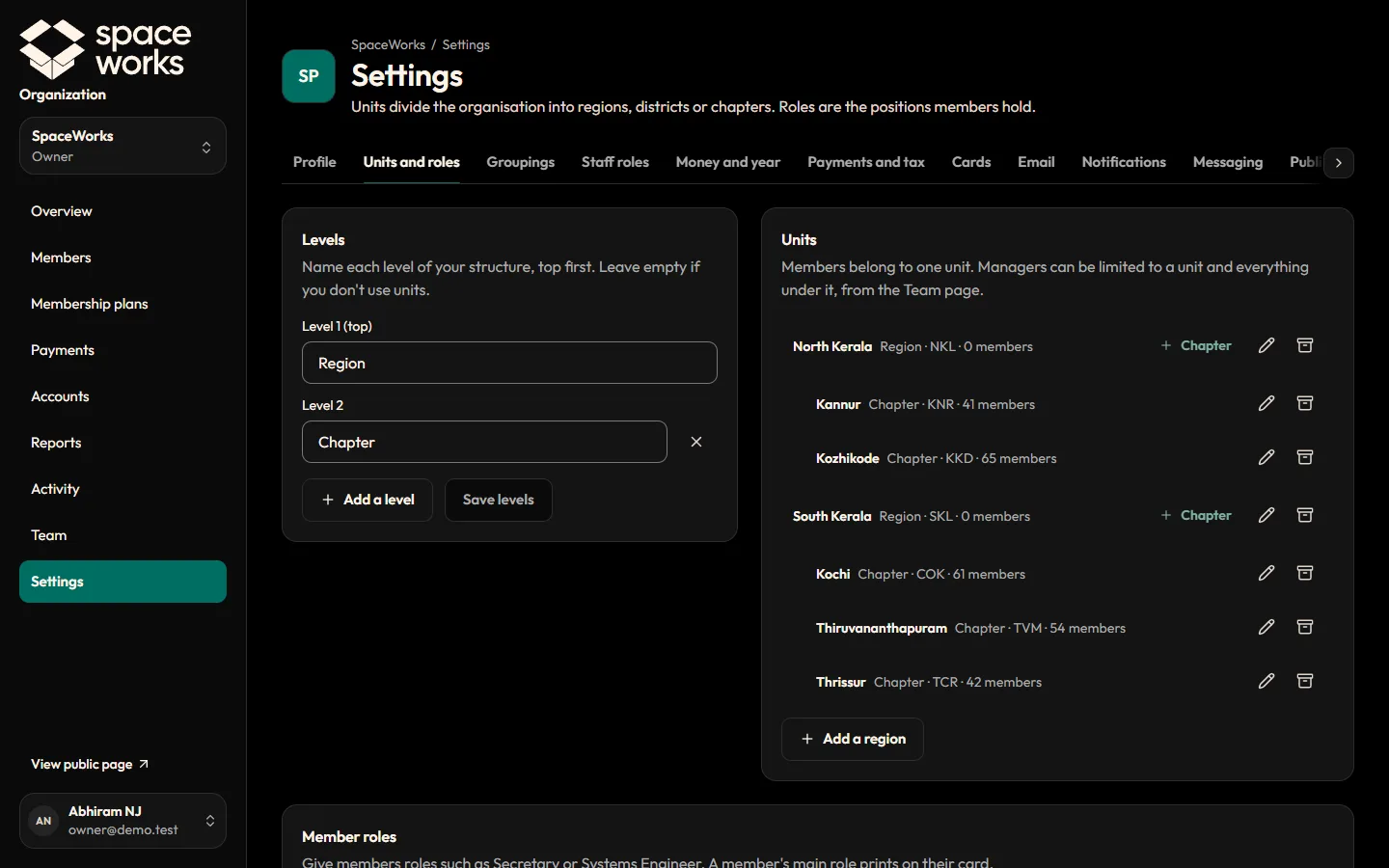
- Open Settings, Units and roles (
/dashboard/<slug>/settings/structure). - Under Levels, start from a template (Area and unit; State, district and chapter; Branches only) or type your own names. Use Add a level for up to four.
- Select Save levels.
Add a unit
- Under Units, select the add button, which carries your top level's name (for example Add a region when the top level is Region).
- Type a name of 2 to 80 characters and, if you want, a code. Select Add.
- To add a unit underneath, use the button with the next level's name on its row.
Each row shows the level, the code and how many members it has. The pencil button renames a unit or changes its code; the archive button archives it and everything under it.
Use the unit page
Select a unit's name to open its page (/dashboard/<slug>/settings/structure/<unitId>). It shows:
- Join links, one for each open plan offered in the unit, ready to copy.
- Team: staff whose reach includes this unit.
- Payments: the unit's own offline payment instructions, up to 1,000 characters, or the ones it inherits.
- Contact details: the unit's own Email, Phone and Website, below.
- The units on the next level down.
- Move, for any unit below the top level: choose a new parent on the same level.
- A link to view members in this unit.
Set an area's contact details
- Open the unit's page and find Contact details.
- Fill in any of Email, Phone and Website. A field left empty shows what it inherits as its hint ("Leave empty to use ...") and uses it; with nothing above, it prints nothing for that unit.
- Select Save contact details.
The email must look like an address, the phone takes 6 to 20 digits, spaces, +, - and brackets, and the website must start with https:// or http://. Each detail is taken separately, so a unit can have its own phone and borrow the email from above. Editing contact details needs structure.manage, works for archived units too, and is written to the audit log as UNIT_CONTACT_CHANGED with the names of the fields changed, never their values.
Where the details show:
- on the back of members' cards, from the member's own unit up (see member cards);
- on the unit's public page, and in the Areas directory block of the organisation's page;
- in a Contact block on the unit's public page, which uses the unit's email and phone when it or a unit above sets them, and keeps the typed values otherwise.
A unit's public page
Every active unit has a page at /o/<slug>/a/<CODE> (the code is not case-sensitive). It shows the organisation's published page, scoped to the unit:
- a breadcrumb from the organisation down through the units above, and the other units under the same parent at the foot;
- the plans the unit offers (a plan limited to some units appears only where it applies), with join buttons that carry the unit's code, so people join the right unit;
- live numbers for the unit and everything below it, with small counts hidden as on the organisation's page, and "by area" listing the unit's sub-areas. The older Live counts block is hidden here because its organisation-wide numbers would sit under the unit's name;
- the unit's contact details.
The page shows not found for an archived, unknown or malformed code, for another organisation's code, and for an organisation that isn't active. With no published organisation page, a plain page of plans, areas and contact details is shown. Area pages are listed in the sitemap for listed organisations that have a published page. See public page for the blocks.
Member roles
The same page holds Member roles, such as Secretary or Systems Engineer. A member's main role prints on their card, and a role can be offered Only in unit. Member roles are not staff roles; see staff and roles for those.
Who can use it
- Building and changing the tree, levels, codes, member roles, unit payment instructions and unit contact details needs
structure.manage◆ (ORG_WIDE_TO_CHANGE). Staff who hold it for one unit can open Units and roles and the unit pages, but they are read-only. - Limiting staff to a unit is done from the Team page with
team.manage: an invite's Where field limits the new member of staff to one unit and everything under it. - Staff limited to a unit see and act only inside that unit and the units below it, in every list, count, payment, card, report and export. They can read, but never change, organisation-wide settings, and organisation-wide-only permissions (●
ORG_WIDE_ONLY, such asreports.gstr1andgroupings.manage) are refused to them.
Turning it on or off
Units are optional. An organisation with no levels and no units simply has no unit level, and its screens leave units out. To start, name at least one level under Settings, Units and roles, Levels. To stop using a unit, archive it rather than deleting it; units are never deleted.
Screenshots
API
There is no public REST API yet. Unit changes are server actions inside the app, and each one is written to the audit log (UNIT_CREATED, UNIT_MOVED, UNIT_ARCHIVED, UNIT_CONTACT_CHANGED and others). The source is on GitHub, with the unit actions in app/actions/units.ts.
Related
- Groupings divide members in other ways and combine with unit limits.
- Plans and join forms for limiting a plan to units.
- Member cards for card number patterns and an area's own card design.
- Public page for the blocks on an area's page.
- Payments for unit payment instructions and the collection sheet.
- Limited staff manual and owners' manual.
- Audit actions.
From SpaceWorks-Organization/docs/features/units.md at 7cd1441, updated 2026-11-21. Suggest a change