Space Works Organization · Start here
Quickstart for members
Find an organisation, join through its form, pay, and then use your account for your card, renewals, receipts, refunds and privacy.
1. Find the organisation
- Public organisations are listed at
/organisations. Choose one to open its public page. - Every organisation's public page is
/o/<slug>, for example/o/spaceworks. It lists the plans you can join. - An organisation may send you a join link directly, sometimes ending in
?unit=CODEso you join the right unit, or an invitation for a plan that is invite only.
2. Join
- Open the plan and choose to join.
- Sign in, or create an account. Your account keeps your membership, card and receipts in one place, across every organisation you join.
- Verify your email address. Organisations know you by it, so you can't join until it is verified.
- Answer the join form. Your name and email come from your account. Some plans ask for a photo for your card.
- Send the form.
What happens next depends on the plan:
| The plan says | What you see |
|---|---|
| Open to all | Your membership starts, or waits for payment. |
| Apply and approve | Your application waits for approval. You are emailed when it is decided. |
| Invite only | You need the invitation. A personal invitation works only for the email address it was sent to. |
| Closed | No new members. Existing members can still renew. |
3. Pay
- Online: if the organisation has set up Razorpay or Stripe, choose Pay now and pay there.
- In hand: the page shows the organisation's payment instructions (your unit's first, then the organisation's). Pay as it says, then tell them you have paid with the reference, such as a UPI or bank transfer number. Someone on their team confirms it.
- Free plans have no payment step.
Every payment gets a receipt or tax invoice, which you can open as a PDF. See Payments.
4. Your account
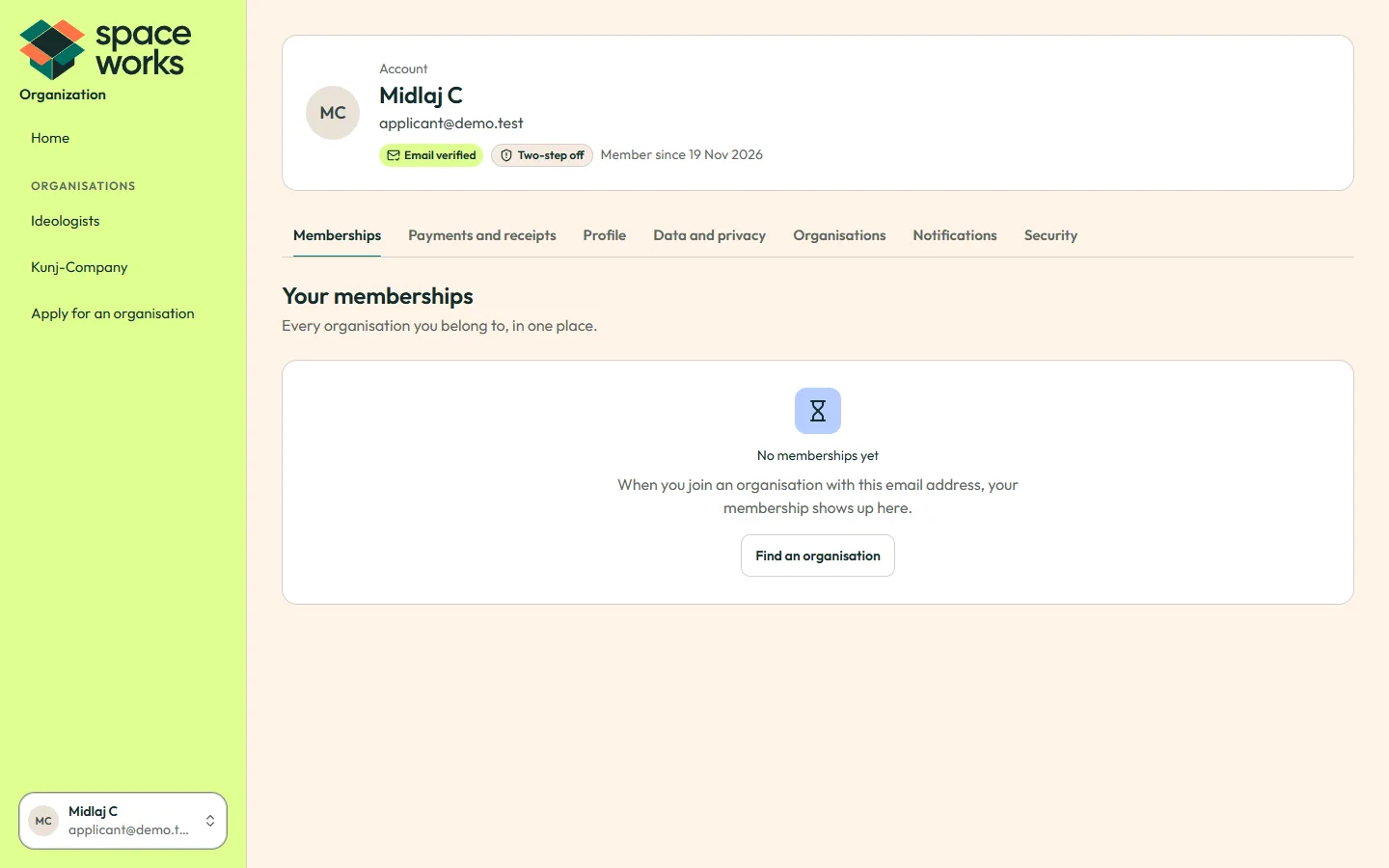
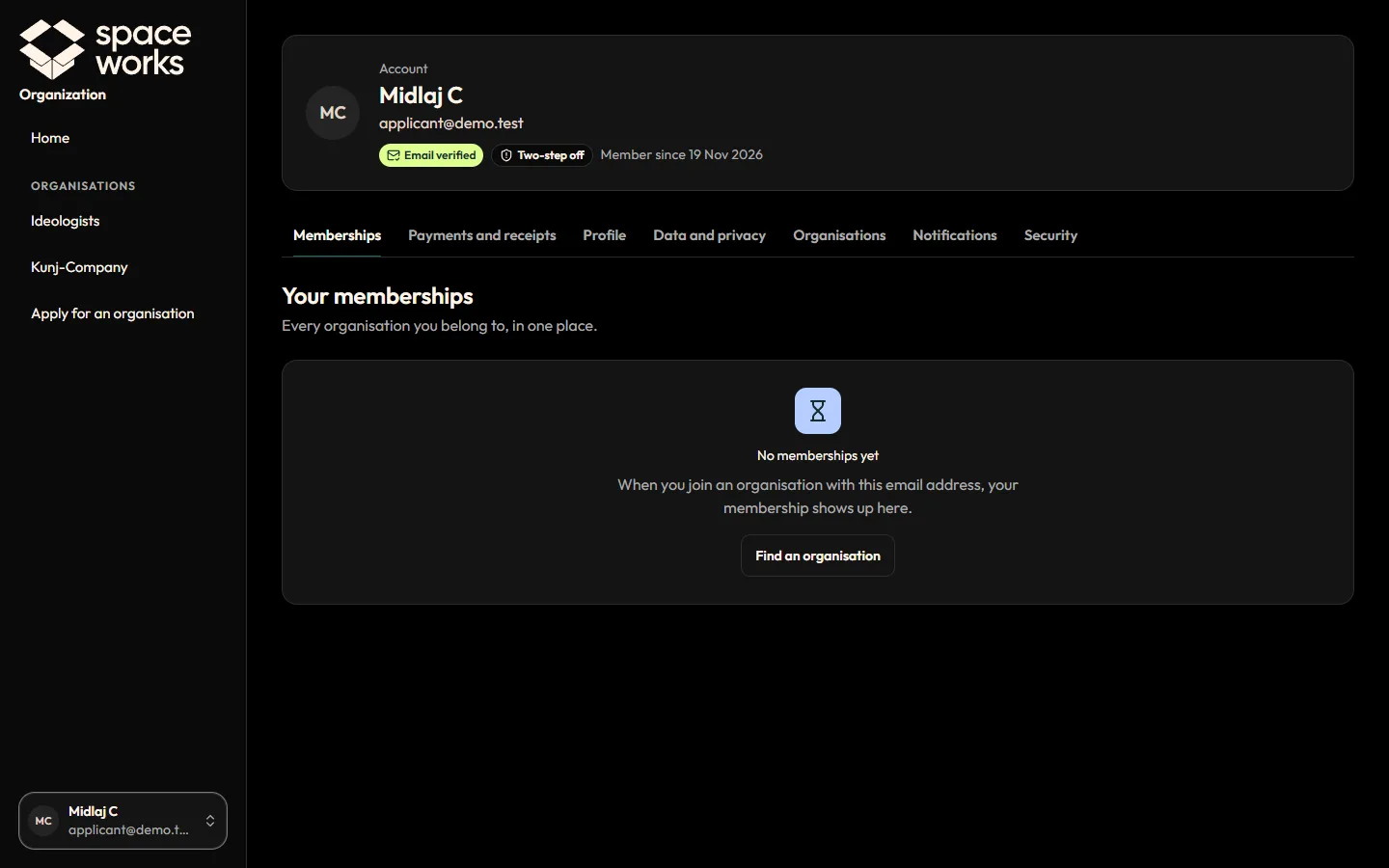
Your account lives at /account.
| Page | Route | What it shows |
|---|---|---|
| Your memberships | /account |
Every organisation you belong to, each membership's status, and your member card |
| Membership | /account/memberships/<slug> |
One organisation: your details, history, renew, leave and refunds |
| Payments and receipts | /account/payments |
What you've paid each organisation, with every receipt and credit note |
| Your profile | /account/profile |
Your name, photo, email and how the app looks for you |
| Notifications | /account/notifications |
Optional phone or chat channels, one organisation at a time, and recent messages |
| Privacy and your data | /account/privacy |
What you agreed to, a copy of your data, and erasure |
| Account security | /account/security |
Your password, two-step sign-in, passkeys and where you're signed in |
5. Your card
Your card appears with the membership on Your memberships once the membership first becomes active. You can view it, download it, and show its QR code. Anyone who scans it sees whether the card is valid. Renewals keep the same card and number. See Member cards.
If the organisation allows it, you can add or replace the photo printed on your card from your account.
6. Renew
When your plan's renewal window opens, choose Renew on your membership. You can renew early, or late while the membership is in grace. If you can't renew, the page gives a plain reason. A lapsed member can Rejoin, and a joining fee may apply. See Renewals.
7. Leave or ask for a refund
- Withdraw application calls off an application or unpaid membership.
- Leave ends a membership.
- Cancel and request a refund appears when the organisation's refund policy offers money back on a paid, running membership. The organisation approves or declines the request, and you are emailed either way. You can withdraw an open request.
See Receipts and refunds.
8. Privacy
On Privacy and your data you can:
- see what you agreed to when you joined, and withdraw consent;
- download your data (up to 5 downloads an hour);
- Ask to erase my details. Staff decide the request. Erasure anonymises you; payment records are kept.
When the organisation has no member accounts
An organisation can turn member accounts off. Then its memberships do not appear in your account. Its emails link to its public page or to a signed pay link, /pay/<token>, which opens the payment for one membership without signing in. A pay link lasts 30 days and only lets you pay, or say you've paid, what that membership owes. Card checks at /verify work either way.
Next steps
- Members manual for every screen in detail.
- Member portal and Glossary.
From SpaceWorks-Organization/docs/guides/start/quickstart-member.md at 7cd1441, updated 2026-11-21. Suggest a change