Space Works Organization · Features
Plans and join forms
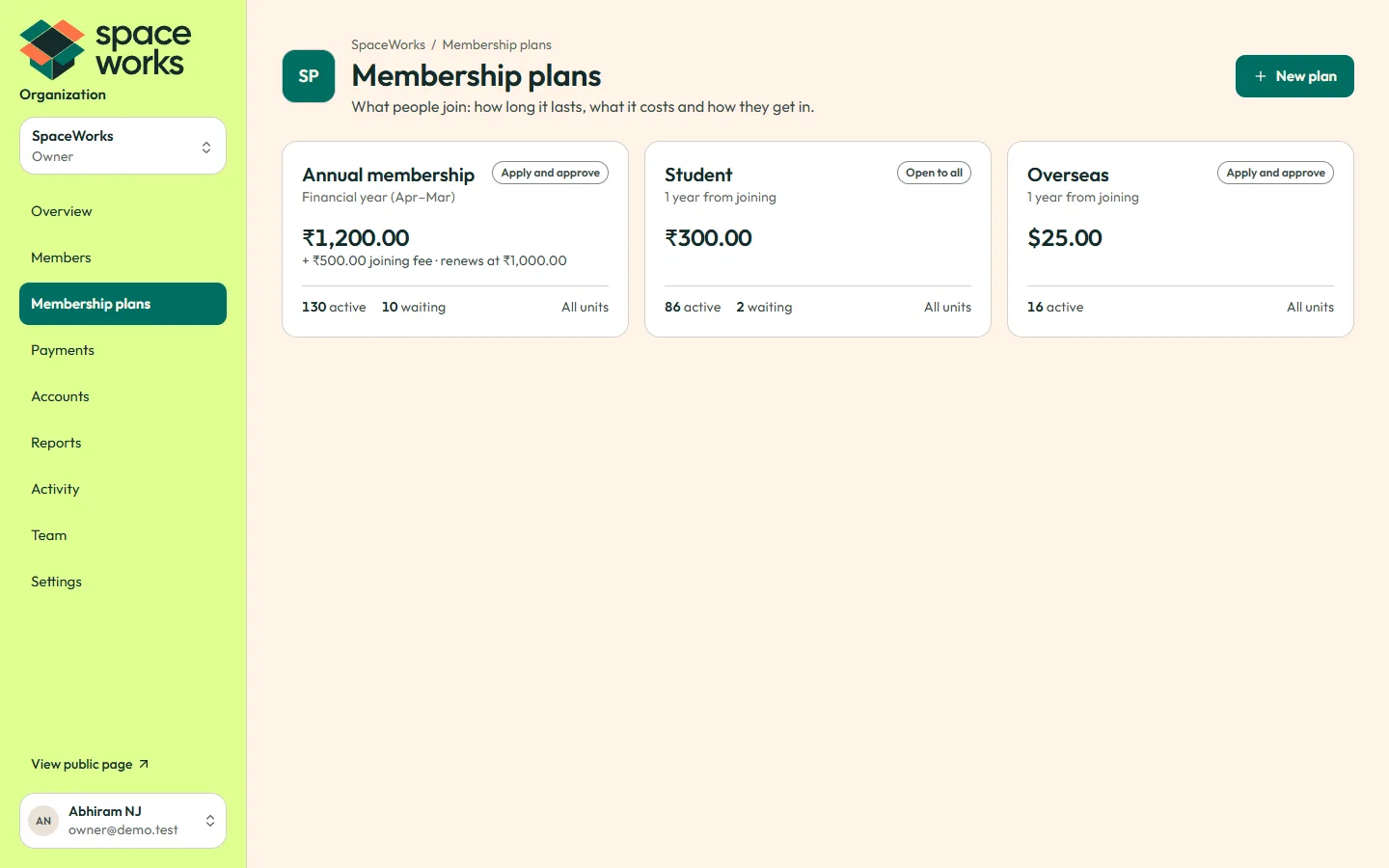
Plans describe what people can join, how long it lasts and what it costs; each plan's join form asks exactly what you need to know.
What it does
Plans live under Membership plans in the dashboard (/dashboard/<org>/plans). Each plan has its own public
join page at /o/<org>/join/<plan>, and a plan's settings page shows its join link, its invitations and its
join-form questions.
What a plan sets
- About this plan: a name, a short address (used in the join link) and a description shown on your public page and join form.
- How it is paid: Free (no payment step), Paid, online or in hand (online when you have set up a payment service, in hand otherwise), or Paid, in hand only (members see your payment instructions and say they've paid). See Payments.
- Price: the currency (fixed once members join), the price to join, the price to renew (empty means the same as joining) and an optional one-time joining fee. When someone rejoins, the joining fee is never charged again, charged every time, or charged only if they were away for more than a number of days.
- How long it lasts: Financial year (everyone renews together at the start of the organisation's year), Fixed length (a number of months from the day it starts), Until a date (one end date for everyone, such as a season) or Lifetime (never ends, no renewals).
- How people join: Open to all (anyone joins straight away), Apply and approve (a manager approves each one), Invite only (only people with an invitation) or Closed (no new members; existing members can still renew).
- When membership starts: Starts when paid (approved members pay first) or Starts now, pay later (the membership starts at once and the fee stays due).
- Renewals and renewal conditions: see Renewals.
- Units: Open to every unit, or Only these units. A plan limited to units is also offered to every unit below them. See Units.
Join forms
Name and email always come from the person's account. On top of that, each plan chooses:
- Photo: Off, Optional or Required. The photo is printed on the member's card, and a member who already has a photo keeps it.
- Phone and State: Hidden, Optional or Required.
- Offer the under-18 option: people under 18 join with a parent or guardian's details and consent. Members already recorded as under 18 are always asked.
- Questions: up to 40 per plan. Answer types are Short answer, Paragraph, Choose one, Choose several, Date, Email, Phone, Number, Tick box, Grouping (choices come from Groupings) and Section heading. Each question can be Required, Managers only (hidden from the public form), or shown only when an earlier question is answered a certain way.
Answers are kept on the member by question key, so one answer is kept per key even when a person holds several plans. If two plans define the same key differently, the plan editor warns you, and public forms and member accounts skip that question until every plan asks it the same way. Answers to choose-several questions are kept together, separated by "; ".
Joining
- People sign in, with a verified email address, before they join. They agree to the privacy notice on the form.
- The organisation must be active, and the plan open and not archived. A full organisation (at its member limit) refuses new members.
- If the organisation uses units, the person chooses their unit. A unit join link (
?unit=CODE) picks the unit for them when the plan is offered there; an existing member's unit always wins, so joining never moves anyone. - What happens next depends on the plan: an Apply and approve plan waits in the approval queue; a paid plan that starts when paid waits for payment; anything else starts at once.
- The confirmation shows how to pay where payment is due, including any payment instructions for the person's unit.
Invitations
From a plan's page, staff can copy the join link or create an invitation: one for an email address (sent by email, used once) or a shared link with a number of uses, optionally tied to a unit. An invitation stands in for approval, and lets people join an Invite only or Closed plan. Invitations expire after 30 days and can be revoked.
Approve an application
- Open Members and choose Waiting for approval (the members list also shows a notice when people are waiting).
- Check each person's details and answers on their member page, or select several in the list.
- Choose Verify to approve, or Decline with a note. The member is emailed either way, and the note tells them why.
An approved member on a plan that starts when paid has 14 days to pay before the unpaid membership expires.
Create a plan
- Open Membership plans and choose New plan.
- Fill in each section, then choose Create plan.
- On the plan's page, add questions with Add a question, then Save questions.
- Share the join link, or put the plan on your public page.
Archive plan takes a plan off the public page and stops new joins and renewals on it, without touching anyone's history; Restore plan brings it back.
Tip: Answers already given stay on members when you remove or change a question, under their keys.
Who can use it
- Creating and editing plans and their questions needs
plans.manage. It is ◆ORG_WIDE_TO_CHANGE: staff limited to a unit can read plan settings but not change them. - Seeing plans needs
members.view. - Approving, declining and sending invitations need
members.manage. Staff limited to a unit act only on applications and invitations inside their unit. Staff limited to a grouping can't create or revoke invitations, because an invitation can't carry grouping values. - Joining is open to anyone with a verified account, as the plan's join mode allows.
Turning it on or off
- How people join on each plan decides whether it accepts applications and whether they need approval.
- Archive plan stops a plan taking anyone new or renewing; Restore plan reopens it.
- Each question, and the photo, phone and state fields, are switched on or off per plan.
Screenshots
API
There is no public REST API yet. The source is on GitHub.
Related
From SpaceWorks-Organization/docs/features/plans-and-join-forms.md at 7cd1441, updated 2026-11-21. Suggest a change