Space Works Organization · Features
Sign-in
How people sign in: email and password, Google, Apple, GitHub, OpenID Connect, SAML 2.0, passkeys, phone codes and Supabase or Firebase accounts.
What it does
People sign in at /login. Email and password is on by default; every other way is off until the person running the platform switches it on. The sign-in page shows the buttons for the methods that are on first, then an "or" line, then the email and password fields.
Methods
| Method | Default | Set up by |
|---|---|---|
| Email and password | On | Nothing to set up |
| Off | Client id and secret, in Super admin, Settings or the server environment | |
| Apple | Off | Services ID, team ID, key ID and key |
| GitHub | Off | Client id and secret |
| OpenID Connect | Off | Add providers under Super admin, Auth: issuer, client id, secret, scopes |
| SAML 2.0 | Off | Add providers under Super admin, Auth: entity id, sign-on address, certificate |
| Supabase, Firebase | Off | Public project values in the server environment |
| Passkeys | Off | Nothing to set up; people add their own. They work only on the site address they were created for |
| Phone code | Off | An SMS provider (Twilio or MSG91) under Super admin, Auth, SMS, or in the server environment |
Email and password
- New passwords (sign-up, change, reset and the server command) that appear in known data breaches are refused. Only the first five characters of the password's SHA-1 hash leave the server.
- Several wrong passwords for one email address slow that address down for a while (15 seconds, doubling up to 15 minutes), whether or not an account exists.
- Twenty failed sign-ins from one address within 15 minutes block that address from signing in, signing up and asking for a password reset for an hour; a repeat within a week blocks it for a day. Super admin, Security lists the blocks and lifts them.
- Without an email service, "Forgot password?" is hidden and an administrator resets the password.
Google, Apple and GitHub
Google, Apple and GitHub can join an existing account by its verified email. A sign-in with no verified email, such as a phone number alone, is refused. They don't join an account that has no password and only single sign-on or Supabase or Firebase identities; its owner signs in the usual way and links the provider from their account instead.
OpenID Connect and SAML 2.0
The platform's super admin adds any number of providers under Super admin, Auth, each with its own Enabled switch. "Test connection" checks an OpenID Connect provider before people use it. SAML sign-in starts at /api/auth/saml/<name>/login, and each provider's metadata is at /api/auth/saml/<name>/metadata. Neither ever takes over an existing account by email: if that email already has an account, the sign-in is refused and the person signs in the usual way, then links the provider from their account.
Supabase and Firebase
Supabase and Firebase can be used as identity providers. They open their own sign-in, and this site accepts the result only when the provider confirms the email address. They sign in the accounts they created here: an email that already has an account must keep signing in the way it does now. Keep "Confirm email" on in the Supabase project, and email verification on in Firebase.
Passkeys
Passkeys sign people in with a fingerprint, face or screen lock. Add one under Security in your account (/account/security) while signed in; the sign-in page then shows "Sign in with a passkey" and suggests passkeys in the email field. Staff with an authenticator still enter its code after a passkey. You can rename and remove passkeys, but not the last way you have to sign in. Passkeys belong to the site address: if the address changes, people use their other methods.
Phone codes
With phone codes on and an SMS provider set up, people add a phone number under Security in their account: they type it with its country code, get a six-digit code by text and confirm it. After that, "Sign in with a phone code" on the sign-in page texts a code to that number.
- The code works once, for 10 minutes, with five tries.
- It never creates an account, and a number belongs to one account.
- If your account has an authenticator app, you enter its code as well.
- You can't remove your phone if it is your only way to sign in.
- The sign-in page answers the same way for every number ("If this number belongs to an account, we've sent a code"). Asking for too many codes for one number (3 in 15 minutes, 10 a day), one country calling code or one address is refused with a wait.
- It works even when no email service is set up.
Staff authenticator and recovery codes
- Anyone on an organisation's team must turn on an authenticator app (Two-step verification, under Security in their account) before the dashboard, its actions or its exports open, whichever method they signed in with. Members never need one, but can turn it on.
- Turning it on gives 10 one-time recovery codes. Save them: each one works once in place of an authenticator code.
- With an authenticator on, you can replace your recovery codes under Security by entering a current code from the app. The old codes stop working, and the new ones are shown once.
New browsers and devices
- Each browser that signs in is remembered by a cookie. A first sign-in from a new device emails the account an alert with the browser, address and time.
- An account without an authenticator signing in from a browser it hasn't used before enters a six-digit code emailed to it (10 minutes, single use), unless it verified its email in the last hour or the platform can't send email.
Signed-in devices and sign-in methods
- Under Security in your account, Signed-in devices lists the browsers and devices signed in to you, with the way each signed in, a rough place and when it was last used. Sign any of them out, or use Sign out everywhere. Ending a device signs it out on its next page load.
- Sign-in methods shows every way you can sign in. Add Google, GitHub, a company single sign-on (OpenID Connect), SAML, Supabase or Firebase while you are signed in: it links that account to yours. It never links by email address, and never takes an account that already belongs to someone else. Apple can't be added this way. Remove any you no longer want, as long as another way to sign in remains.
- Adding a method, a passkey or a phone number, and removing one, asks you to have signed in recently.
Staff invites and super admins
- A staff invite link (
/join/org/<token>) lets someone create an account on the spot, even while new account creation is switched off. The invite creates at most one account. - Super admins always sign in with an email and password set on the server. They have no passkeys, phone codes or linked providers.
Who can use it
- Everyone signs in. Staff also need an authenticator; members don't.
- The platform super admin chooses which methods are offered, under Auth in the super-admin area (
/super-admin/auth), and adds OpenID Connect and SAML providers there. Google, Apple and GitHub credentials go under Super admin, Settings, in Sign-in providers. - The person running the server can fix the list at install time, with
LOGIN_METHODS, or with the admin command.
Turning it on or off
Each method has a switch under Super admin, Auth, Sign-in methods. A method works only when its switch is on and it has been set up, so switching one on never makes an unconfigured method work, and switching one off keeps its credentials. For OpenID Connect and SAML, each provider also has its own Enabled switch. A method that is off is hidden everywhere and refuses sign-ins.
- New account creation on the same page lets new people create accounts, or keeps sign-in to existing accounts only.
- If the server sets
LOGIN_METHODS(a comma list ofpassword,google,apple,github,oidc,saml,supabase,firebase,passkeyandphone), the switches show as set by the server and can't be changed in the app. - On the server,
bash scripts/admin.sh login-methods --showlists the switches, and--setchanges them for password, Google, Apple, GitHub, OpenID Connect, SAML, Supabase and Firebase. - With email and password off, the sign-in page hides the password form and sign-up, and super admins reach theirs from the Super admin sign-in link (
/login?admin=1). - Operator settings:
AUTH_GOOGLE_ID,AUTH_GITHUB_ID,AUTH_APPLE_IDand their companions,AUTH_SUPABASE_URLandAUTH_FIREBASE_API_KEYwith theirs,SMS_PROVIDERwith the Twilio or MSG91 values, andPWNED_PASSWORDS_CHECK=0to turn off the breached-password check for installs without internet access. See environment variables.
Warning: A compromised super admin reaches every organisation. Keep super admins few and their authenticators on.
Screenshots
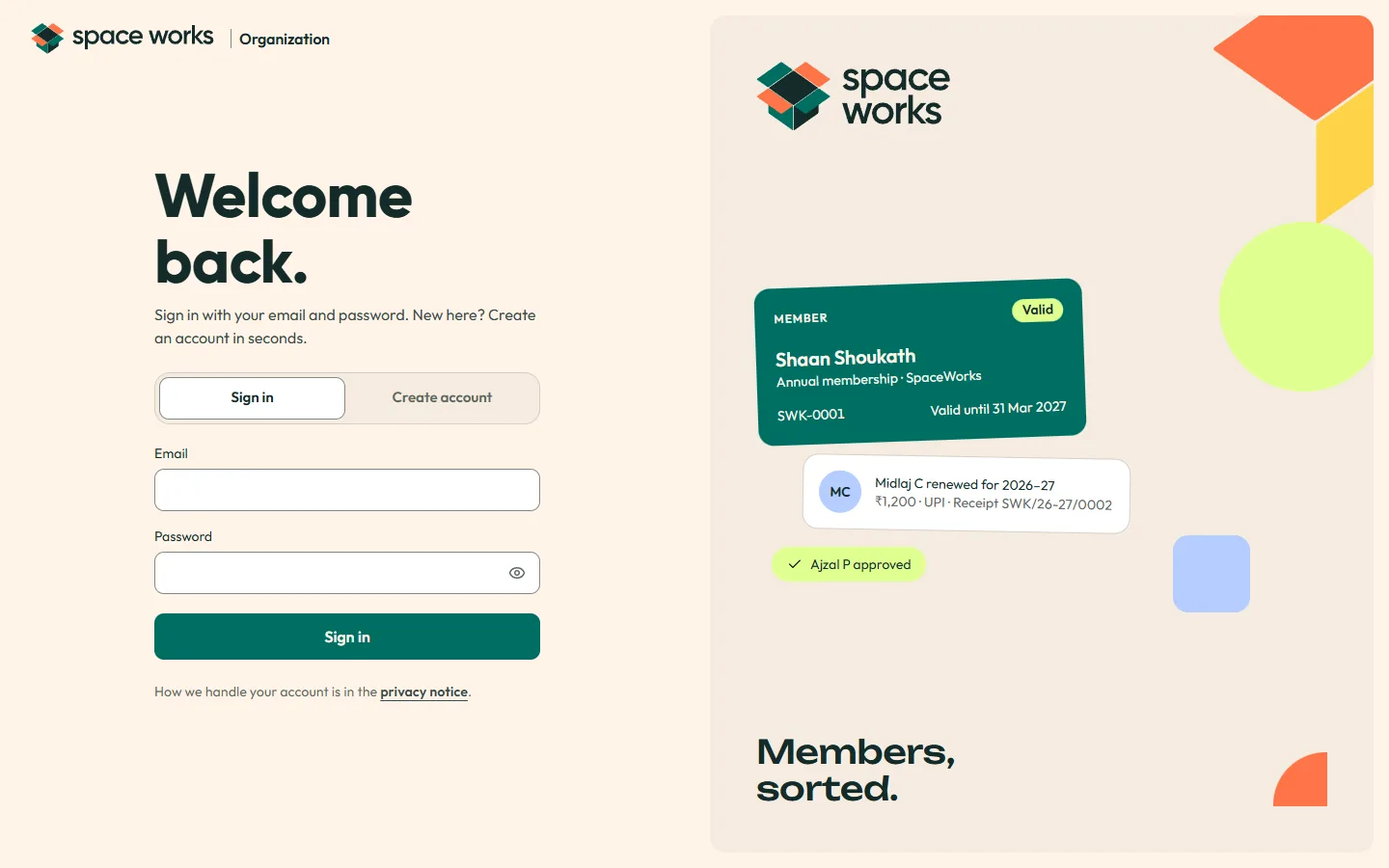
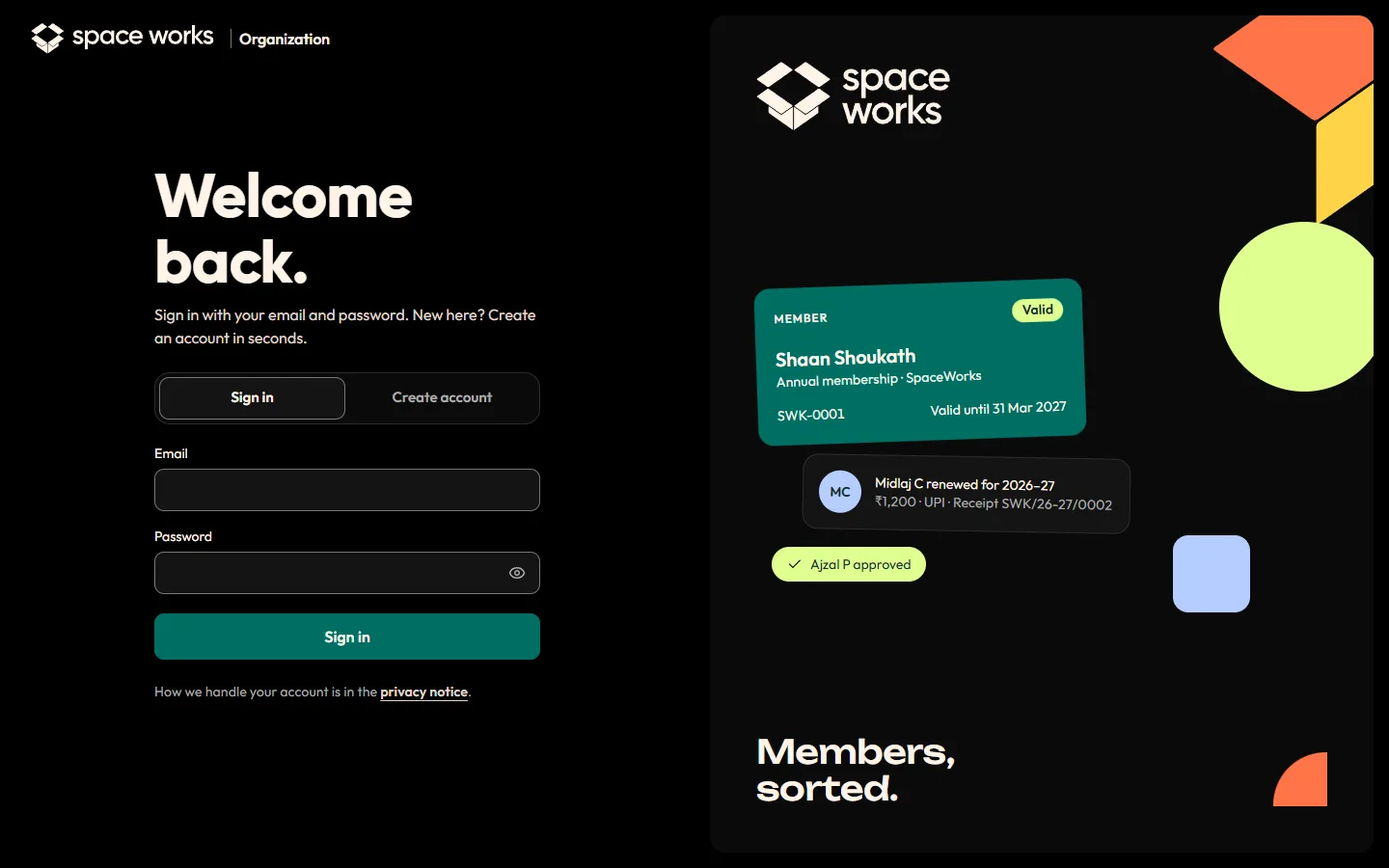
API
There is no public REST API yet. Sign-in, sign-out and changes to methods are recorded in the audit log, listed at audit actions. The SAML and SMS delivery report addresses are listed on webhooks and endpoints. The source is on GitHub, with each method in lib/authMethods.
Related
- Staff and roles, for why staff need an authenticator
- Member portal, for the account pages
- Security, the full sign-in rules
- Text messages, for setting up an SMS provider
- Configuration and library decisions
- Super admins' manual
From SpaceWorks-Organization/docs/features/sign-in.md at 7cd1441, updated 2026-11-21. Suggest a change