Space Works Organization · Features
Certificates
Design certificates for anything an organisation recognises, issue them to members as numbered PDFs, and let anyone check one by its QR code.
What it does
- A certificate design is one page, A4 or US Letter, landscape or portrait, laid out in the same layers as a member card: text, pictures, shapes, icons, a QR code, a barcode and a photo frame. The owner approves a design before anything is issued from it.
- A certificate is one design given to one member, with its own number, a title (for example "Certificate of appreciation"), an optional reason and the date it was issued.
- Every certificate carries a QR code that opens a public check page at
/verify/certificate/<token>. The page says whether the certificate is genuine and still valid. - Staff issue certificates to chosen members, to everyone current on a plan, or to a smart group, and can email each member their certificate as a PDF.
- Staff download any certificate as a PDF or PNG, or a whole batch as a ZIP of PDFs or one combined PDF.
- A certificate that should no longer count is revoked, with a reason. It is never deleted, and its check page then says it is not valid.
- Members see their certificates on their account, when the organisation has member accounts switched on.
Certificates are drawn on demand from the approved design and the stored details, as cards are, and never stored as files.
Design a certificate
- Open Certificates (
/dashboard/<org>/certificates) and select New design. Give it a name for your team, a Certificate type (for example Membership, Appreciation or Course completion) and a page. It opens with a ready-made layout. - In the designer (
/dashboard/<org>/certificates/designs/<id>), the left panel has three tabs: - Design: the details (name, type, page size, orientation, number prefix and pattern), Layouts and the page's colour and background picture. - Elements: add text, shapes, icons, pictures, a QR code, a barcode or a photo frame as layers. - Fields: insert a placeholder into the selected text layer (see the table below). - Layouts offers Classic border, Modern band and Minimal. A layout replaces every layer on the page; Undo brings the last one back.
- Page size is A4 or US Letter, and Orientation is Landscape or Portrait. Changing the page re-lays your layers to fit and starts a new undo history.
- The page colour can be a colour or Black and white, for office printers. A background picture (PNG, JPEG or WebP, up to 5 MB) sits under every layer and can Fill the page or Show it all, with a Strength you set.
- Select layers on the page to move, resize, turn and style them, with the same snapping, guides, align and arrange tools as the card designer. A design holds up to 60 layers. The right panel shows the selected layer and the layer list.
- Download gives a PDF or PNG preview of the last saved draft, filled in with sample details.
- Changes save automatically as a draft. When the owner approves, the draft becomes the live design.
Fonts are the card designer's: Gilroy plus the library of open-licence fonts. Text is shaped for extended Latin, the rupee sign, Malayalam and Devanagari, and drawn as outlines.
Note: A design is one page. The card designer's built-in items (heading, photo, QR tile, footer, watermark) are not used. Add a QR code, a barcode or a photo as layers from Elements, and the QR then holds the certificate's check link.
Placeholders
Type these into a text layer, or insert them from Fields. Anything else in curly brackets is printed as typed.
| Placeholder | What it prints |
|---|---|
{member.name} |
The member's name |
{member.number} |
The member's live card number, else their member number |
{certificate.number} |
The certificate's number |
{title} |
The title chosen at issue, or the design's type when left empty |
{reason} |
The reason or citation typed at issue |
{date} |
The day it was issued, in the organisation's time zone (for example 21 Nov 2026) |
{plan} |
The plan of the member's newest membership |
{organisation} |
The organisation's name |
{unit}, {units} |
The member's unit, and the chain of units from the top level down |
{level1} to {level4} |
The member's unit at that level |
{unitCode} |
The member's unit code |
{website}, {email}, {phone}, {contact} |
The organisation's contact details |
{name} and {number} also work, as on cards; {number} is the certificate number. A value is printed as plain text: a reason typed as {member.name} appears literally, never as the member's name.
Certificate numbers
Each design numbers its certificates in its own series, with the same pattern tokens as card numbers ({PREFIX}, {SEQ} or {SEQ:4}, {MEMBER}, {YYYY}, {YY}, {UNIT}, {U1} to {U4}). The default is {PREFIX}-{SEQ:4}. A pattern with {YYYY} or {YY} restarts its series each year. The prefix is 2 to 6 capital letters or digits. Numbers are unique in the organisation, and a certificate keeps its number for ever.
Approval
- Staff with
certificates.designedit the design. Their changes are a draft; the name changes at once, but the page, type and numbering wait for approval. - The bar above the designer says Waiting for approval until the owner decides.
- The owner selects Approve and publish, which copies the draft into the live design. Discard changes throws the draft away. A design that was never approved is deleted with its draft.
- A design can't be used to issue certificates until it has been approved once. Certificates are always drawn from the live design, never from a draft.
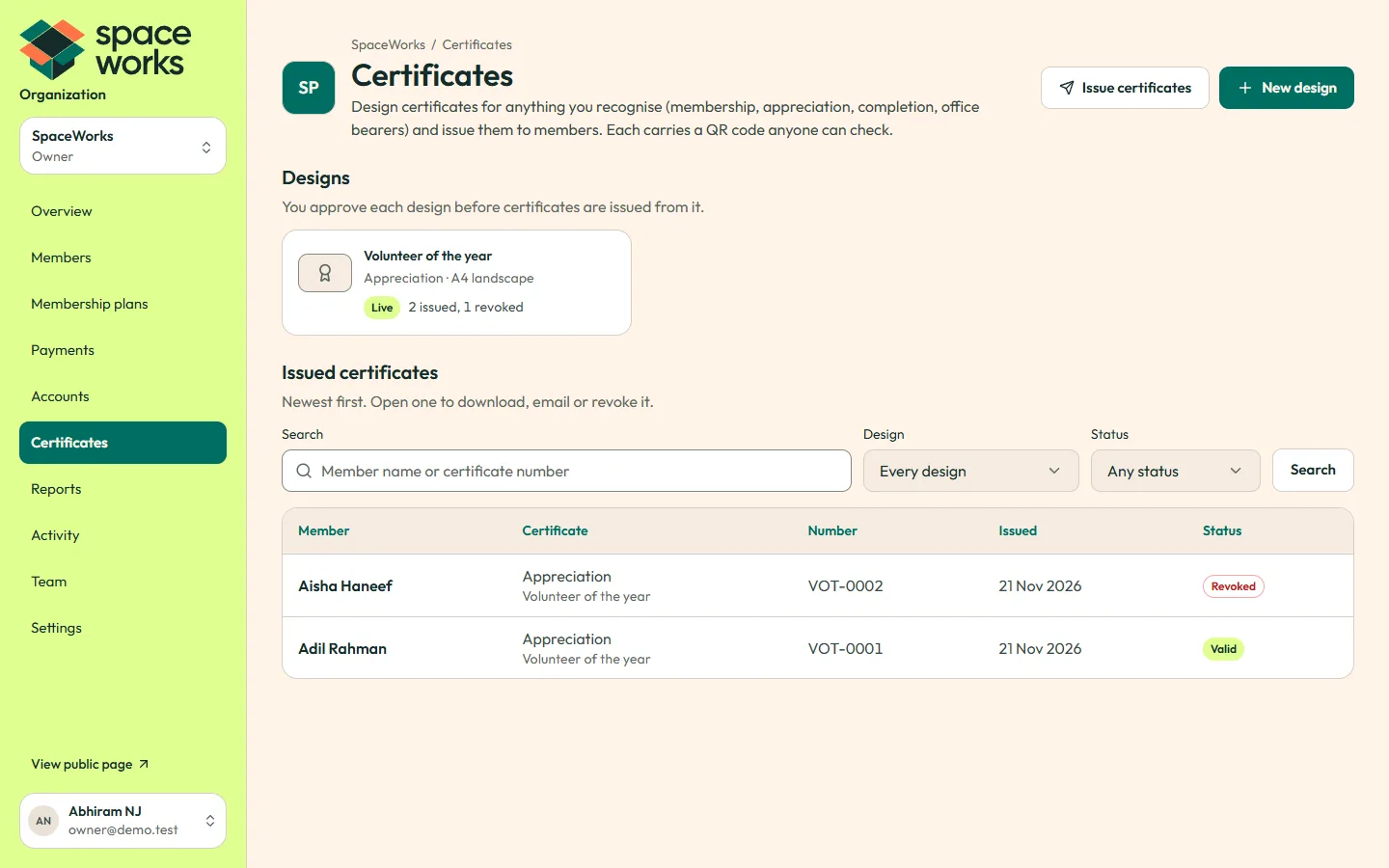
Issue certificates
- Open Certificates and select Issue certificates (
/dashboard/<org>/certificates/issue). From a member's page, Issue certificate opens the same form with that member chosen. - Choose the Design. Only approved designs that are not archived are listed.
- Optionally type a Title (up to 120 characters, printed as
{title}) and a Reason or citation (up to 600 characters, printed as{reason}). Both are the same on every certificate in the batch. - Under Recipients, choose one of: - Chosen members: search and pick up to 500 members. - A plan: everyone whose membership on the plan is active or in its grace period. - A smart group: everyone who matches the group.
- Tick Email each member their certificate to send each one the PDF.
- Review the count in the confirmation, then confirm. The result lists how many were issued and how many skipped, with links to download the batch.
Limits and skips:
- One request issues up to 200 certificates. If more members match, nothing is issued and you are told how many matched, so narrow the choice and try again.
- A member who already holds a valid certificate of the same design with the same title is skipped, so running a batch twice never doubles up.
- You can issue only to members inside your own reach. A member outside it is refused as not found.
- Issuing is written to the audit log with counts only, never names.
Email, download and revoke
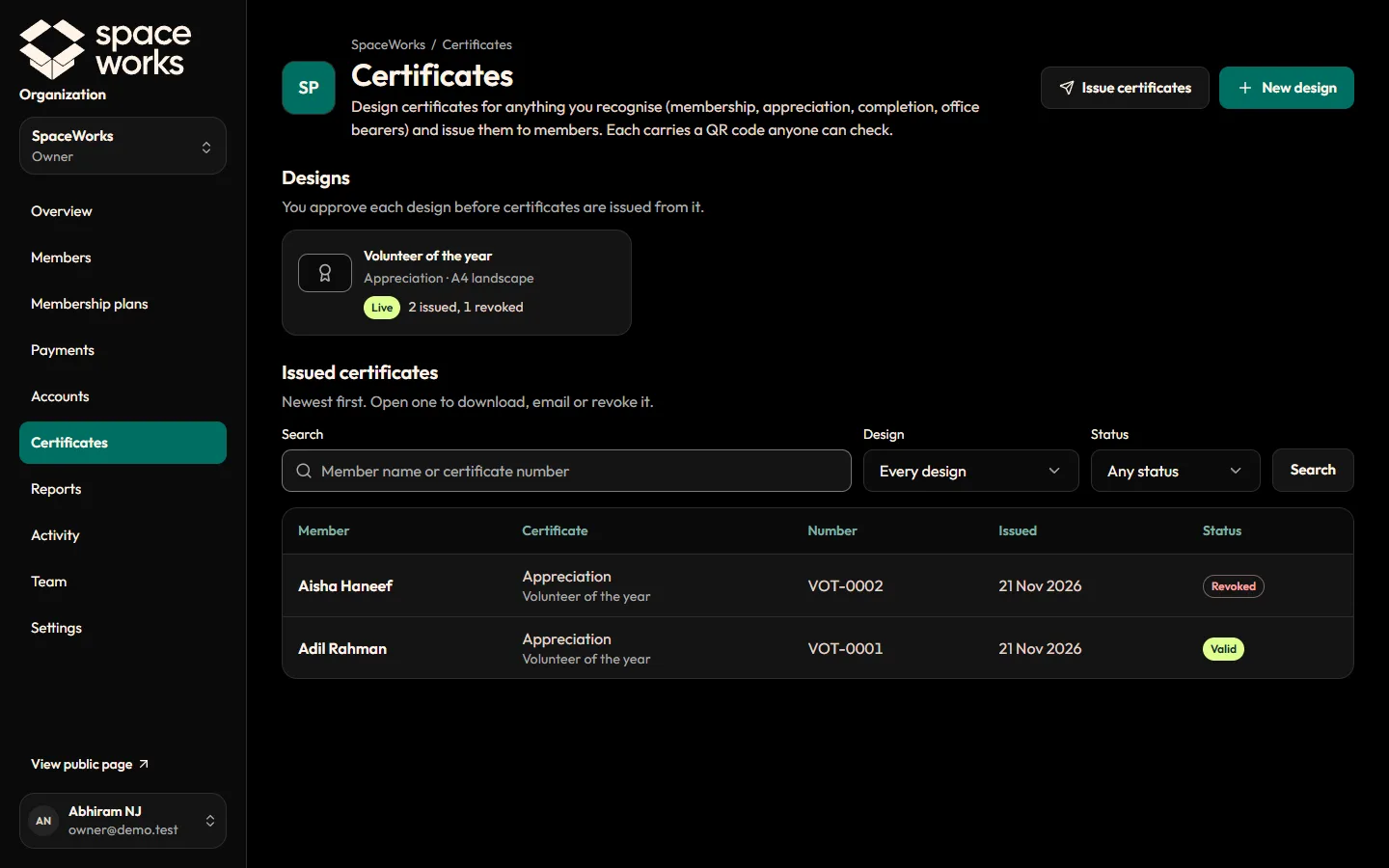
Open a certificate from the Issued certificates list (search, filter by design and status, newest first). Its page (/dashboard/<org>/certificates/<id>) shows a preview, the details, its history and the link to the check page.
- Email to member queues an email with the PDF attached. It can be sent again after 10 minutes. Wording and channel follow notifications.
- Download PDF and Download PNG save the certificate. The PNG is 300 dpi, so an A4 landscape page is 3508 by 2480 pixels.
- Revoke certificate asks for a reason (up to 300 characters), kept with the certificate for your team. Members and the public never see it. A revoked certificate can't be emailed, and members no longer see it.
- Bulk downloads: after an issue, the result offers a ZIP of PDFs (up to 200) or one combined PDF (up to 500) of a design's valid certificates inside your reach. Only one bulk download is drawn at a time, and a second one is asked to wait.
- Delete design removes a design nothing was issued from. A design that has issued certificates is archived instead (Archive design): its certificates stay valid and checkable, and no new ones can be issued from it. Restore design brings it back.
The check page
Anyone who scans the QR code, or opens the link, sees /verify/certificate/<token>:
- Valid: a genuine certificate, the title, the member's name, the organisation, the issue date and the certificate number.
- Revoked: the organisation has revoked it, with the title, number and issue date. The member's name is left out.
- Not recognised: the token matches nothing, or the member has been erased.
- Organisation suspended or archived: its certificates can't be checked until it is active again.
The page never shows the reason, an email address, a phone number, a plan or any other member detail, and it draws no image of the certificate. The token is 32 random bytes in the link, and the page is kept out of search engines and out of the Referer header.
Staff of the certificate's own organisation who can read members, have an authenticator, and have the member inside their reach also see a short panel: the certificate's details, its state, downloads, and links to the certificate and the member. The scan is written to the audit log. Everyone else, including other organisations' staff and staff limited to another unit, sees only the public check.
A member's certificates
When the organisation has Member accounts switched on, a member opens Certificates in their account (/account/certificates) to see each certificate with its organisation, date and number, and to download the PDF or PNG or open its check link. Certificates are found only through the account's verified email address. A revoked certificate is not listed.
Who can use it
| Task | Permission |
|---|---|
| Open the designs and the issued list | certificates.issue or certificates.design |
| Edit designs and save drafts | certificates.design ◆, held for the whole organisation |
| Approve a design | certificates.approve ★ |
| Issue, email, download and revoke certificates, and bulk downloads | certificates.issue |
| See a scanned member's certificate panel | members.view, with an authenticator |
- ◆ Staff holding their role for one unit see the designs read-only.
- ★ Only the Owner holds
certificates.approve. A platform super admin acting as owner can approve too. certificates.issueworks for staff limited to a unit or a grouping: they can issue, email, download and revoke only for members inside their reach, and a plan or smart group issues only to the members of it that they can see.- The starter Manager role holds
certificates.issueandcertificates.design. Existing Manager roles are given both by the update; Treasurer and Viewer hold neither. - A suspended or archived organisation closes the certificate screens and actions.
Turning it on or off
- Certificates need no switch. Certificates appears in the dashboard menu for anyone who holds
certificates.issueorcertificates.design. To give or take it away, change the role under Team. - Members see their certificates only when the organisation has Member accounts on. The check page works either way.
- An organisation can keep up to 100 certificate designs.
- Revoking is the way to stop a certificate counting. Archive a design to stop using it for new certificates.
Limits
- Up to 100 designs, 60 layers per page, 5 MB per uploaded picture.
- Up to 200 certificates per issue request, 500 chosen members at most.
- Up to 200 certificates in a ZIP, 500 in one combined PDF.
- Up to 120 characters in a title, 600 in a reason, 300 in a revoke reason.
- Issued certificates are drawn from the design's current live version. If the owner approves a changed design, certificates already issued from it are drawn with the new look.
- Pictures in a certificate come from the organisation's own uploads. The brand kit's saved logos are not offered in the certificate designer yet.
Screenshots
API
There is no public REST API yet. A certificate downloads from GET /api/certificates/<id>?format=pdf|png, a batch from GET /api/exports/certificates/<org>?design=<id>&format=zip|pdf, and the designer's preview from GET /api/exports/certificate-draft/<org>. They are listed on webhooks and endpoints. The source is on GitHub.
Related
- Member cards, whose designer and numbering certificates share
- Groupings for the smart groups you can issue to
- Notifications for the certificate email
- Staff and roles for the certificate permissions
- Security for how check pages protect members
- Manager manual and Owner manual
From SpaceWorks-Organization/docs/features/certificates.md at 7cd1441, updated 2026-11-21. Suggest a change