Space Works Organization · Features
Staff and roles
Run the organisation with a team, each person holding a custom role with only the permissions they need, for the whole organisation or one unit.
What it does
- Each organisation builds its own staff roles from a fixed list of permissions, for example
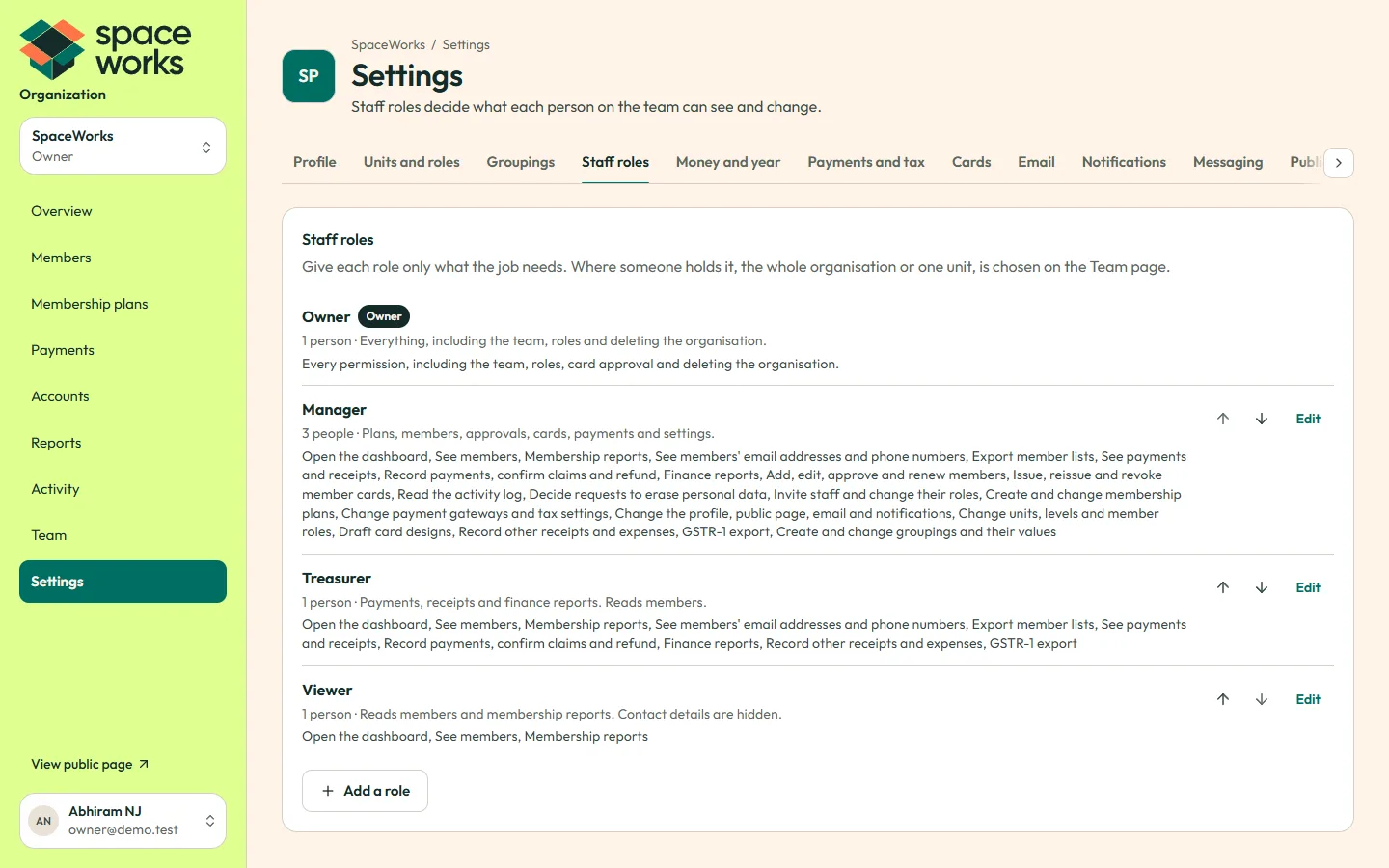
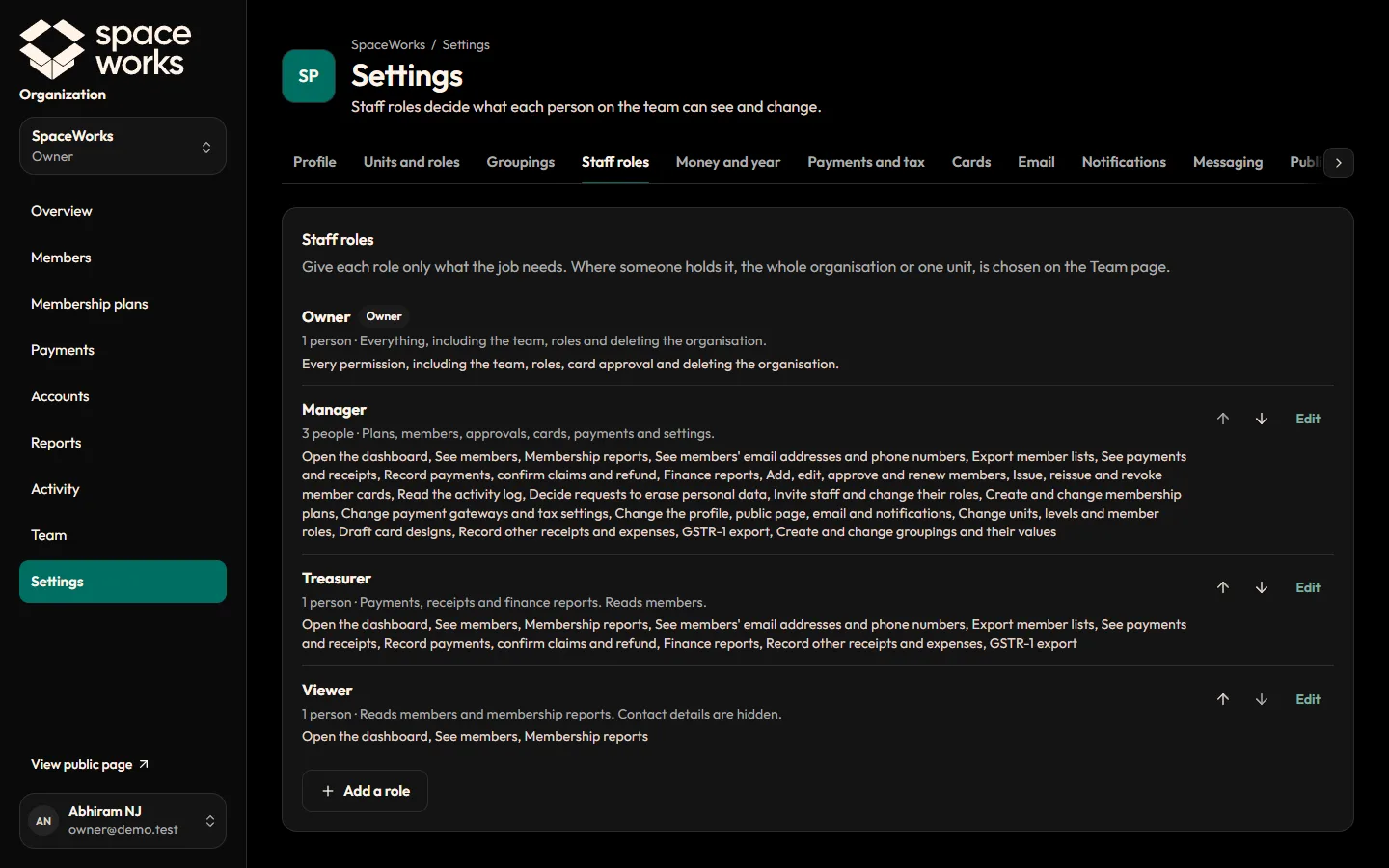
members.view,payments.manage,reports.financeandcards.design. A permission that is not on the list grants nothing. - Four starter roles come ready, and the owner can edit or archive all of them except Owner:
| Role | What it covers |
|---|---|
| Owner | Everything, including the team, roles and deleting the organisation. Holds every permission, including ones added later. |
| Manager | Plans, members, approvals, cards, payments and settings. |
| Treasurer | Payments, receipts and finance reports. Reads members. |
| Viewer | Reads members and membership reports. Contact details are hidden. |
- A role is held for the whole organisation, or limited to one unit and everything under it. A person can also be limited to grouping values; see Groupings.
- People join the team through a single-use invite link that carries the role and, optionally, the unit or grouping value.
- You can give someone only a role that grants strictly less than your own, inside your own reach. Nobody can hand out a role they are holding, or one as wide as theirs.
- Every member of staff sets up an authenticator app before the dashboard opens. Members never need one.
- A platform super admin with an authenticator can act in any organisation as its owner. That never takes a team seat or counts against the team limit, and their entries and every action are written to the audit log.
The permission list
The role editor groups the permissions like this. ◆ marks permissions that staff limited to a unit can read but never change (ORG_WIDE_TO_CHANGE), ● marks permissions refused to them altogether (ORG_WIDE_ONLY), and ★ marks the Owner's alone (OWNER_ONLY).
| Group | Permissions |
|---|---|
| Members | org.view (open the dashboard), members.view, members.contact (email addresses and phone numbers), members.manage (add, edit, approve and renew), members.export, erasure.decide |
| Money | payments.view, payments.manage (record payments, confirm claims and refund), accounts.manage ◆, payments.settings ◆ |
| Reports | reports.membership, reports.finance, reports.gstr1 ●, audit.view (the activity log) |
| Cards | cards.manage (issue, reissue and revoke), cards.design ◆ (draft designs), cards.approve ★ |
| Certificates | certificates.issue (issue, email, download and revoke; works inside a unit or grouping limit), certificates.design ◆ (draft designs), certificates.approve ★ |
| Organisation | plans.manage ◆, org.settings ◆, structure.manage ◆, groupings.manage ●, team.manage, roles.manage ◆, org.delete ★, ownership.transfer ★ |
The editor also offers two templates that only fill the form: Area head and Unit secretary.
Invite someone to the team
- Open Team (
/dashboard/<org>/team). - In Invite people, choose the Role, and under Where choose the whole organisation or one unit. Pick a grouping value too if the organisation uses groupings.
- Create the link and send it to the person. It works once and lasts 7 days.
- When they open it (
/join/org/<token>) and sign in, or create an account, they join with that role. Staff who are not yet set up are sent to set up an authenticator first.
Open links are listed on the Team page and can be revoked. When the platform has set a team size limit for the organisation, an invite that would go over it is refused.
Change or remove someone
On the Team page, change a person's role, their unit or their grouping limits, or remove them from the team. You can't remove yourself this way. Changing roles and removing people asks you to have signed in within the last 10 minutes.
Create or edit a role
- Open Settings, then Staff roles (
/dashboard/<org>/settings/roles). - Add a role, or start from a template, and tick the permissions it needs. You can only tick permissions you hold yourself.
- Save. Where each person holds the role is chosen on the Team page, not here.
A role can be archived only when nobody holds it and no open invite gives it. Only the owner can reorder roles; Owner stays first. You can't edit the role you hold, and a role that grants as much as yours or more can only be changed by the owner.
Transfer ownership
The owner offers the organisation to someone who holds their role for the whole organisation, from Transfer ownership on the Team page, and chooses the role they keep. The offer lasts 7 days. The new owner accepts it on the Ownership offer page (/dashboard/<org>/ownership). A super admin acting through platform access can't transfer ownership.
Who can use it
- Inviting staff and changing their roles needs
team.manage. Staff limited to a unit invite and manage only inside their own unit. - Creating and editing roles needs
roles.manage◆. Staff limited to a unit see Staff roles read-only. - Transferring ownership needs
ownership.transfer★, and deleting the organisation needsorg.delete★: both are the Owner's alone. - Anyone on the team with
org.viewsees the Team page; email addresses are shown only to people who can manage the team.
Turning it on or off
Roles and the team are always on. Only staff need an authenticator, and it can't be switched off for them. The team size limit, if any, is set per organisation by the platform super admin.
Screenshots
API
There is no public REST API yet. Team changes are recorded in the activity log, listed at audit actions. The source is on GitHub, with the permission list in lib/permissionRoles.ts.
Related
- Units and Groupings, which limit where a role reaches
- Sign-in, for the staff authenticator and recovery codes
- Owners' manual and limited staff manual
- Security
From SpaceWorks-Organization/docs/features/staff-and-roles.md at 7cd1441, updated 2026-11-21. Suggest a change