Space Works Organization · Features
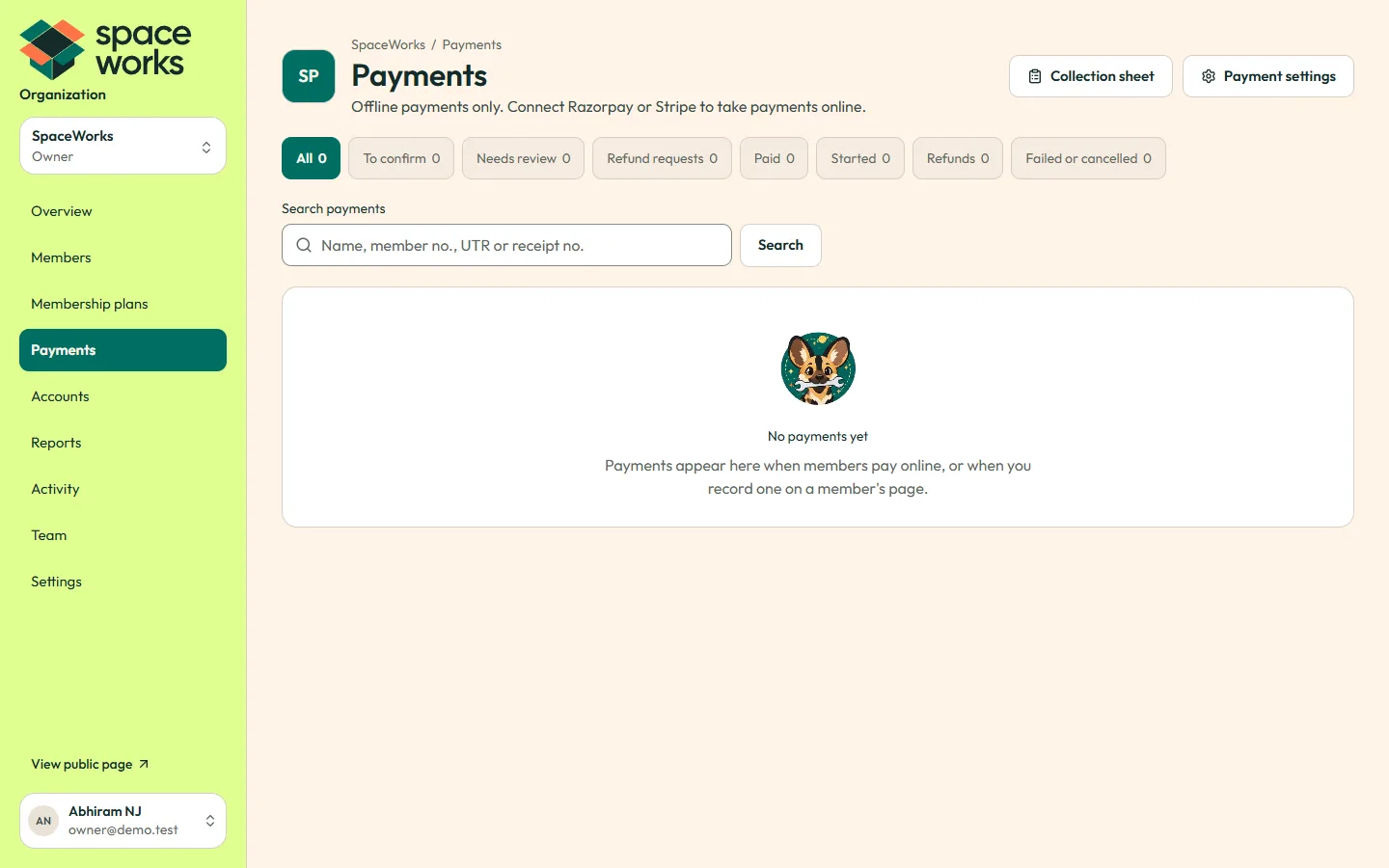
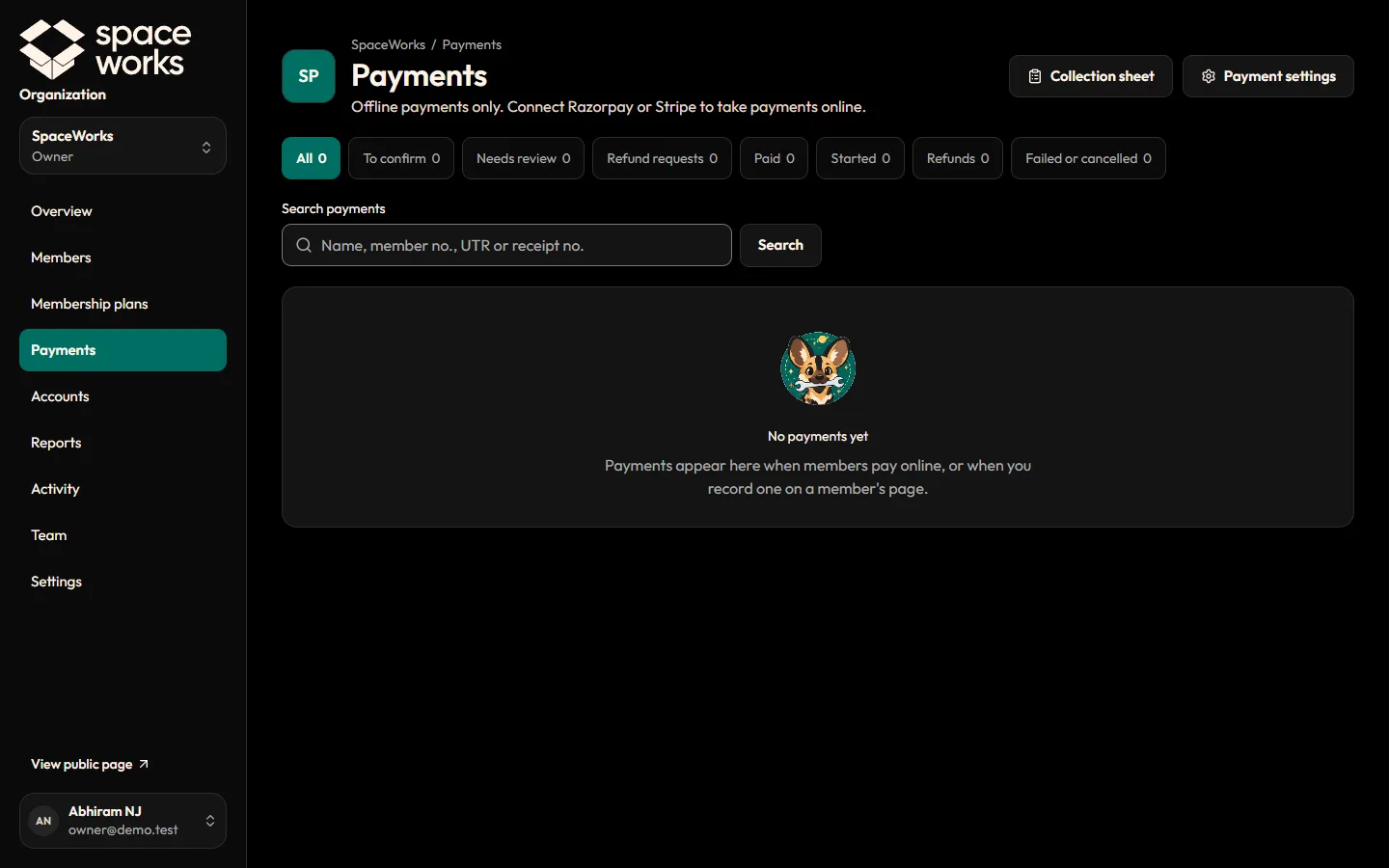
Payments
Collect membership fees online through Razorpay or Stripe, or offline by UPI, bank transfer, cash and cheque, with an honest record of every rupee.
What it does
- How each plan is paid. Every plan has a payment mode, chosen on the plan:
- Free: no payment step. Joining or renewing starts the membership, after approval if the plan needs it. No payment is written and no receipt number is used.
- Paid, online or in hand: members pay online when the organisation has a payment service for that currency, and in hand otherwise.
- Paid, in hand only: members see the payment instructions and say they've paid. The online gateway is never offered, even when one is set up.
- One gateway per organisation. Pick Razorpay, Stripe or offline only. Money goes straight to the organisation's own account. Razorpay opens its checkout over the pay page; Stripe sends the member to Stripe Checkout and back. Test keys (
rzp_test_,sk_test_) put the gateway in test mode, shown as a chip on the Payments page. - Offline is always there. UPI (members see a QR code for the exact amount), bank transfer, cash and cheque. Staff record money they received, or the member presses "I've paid" with the UPI or bank reference and staff confirm it. A reference can be claimed once per organisation.
- The charge comes first. Every charge is written with its lines (membership fee, joining or rejoining fee) and its tax before any gateway order exists, so the amount, tax and receipt are the same whichever way the member pays. A membership has one open payment at a time; a new attempt cancels the old one.
- Money received is never refused. A late capture, a duplicate or a payment for a suspended organisation is still marked paid and receipted, then flagged for review. An amount that doesn't match is paid and flagged, but its receipt is held until staff issue it on the amount received or refund it.
- Instructions per unit. A unit can say how its members pay. Members see the nearest instructions from their own unit up, then the organisation's.
- Pay links. Organisations without member accounts email a signed link (
/pay/<token>) that opens the pay page for one membership without signing in. It lets someone pay, or say they've paid, only what that membership owes, and expires after 30 days. - Amounts in whole paise. Every amount is an integer in the currency's smallest unit, and different currencies are never added together.
- Gateway keys stay secret. Secrets are encrypted at rest, bound to the organisation, and never sent back to the browser.
Record an offline payment
- Open the member under Members and find the fee due in their payments panel.
- Choose Record payment, then How it was paid, the UPI or bank reference (UTR) or a receipt-book or cheque number, and an optional note. A UTR is checked so the same transfer isn't recorded twice.
- With A second person confirms offline payments off, the payment is paid and receipted at once. With it on, it waits under Payments, To confirm until a different member of staff confirms it.
The Waive button beside it forgives the fee instead: no receipt is issued, and the forgiven amount is kept for reports.
Confirm an "I've paid" claim
- Open Payments and choose the To confirm filter.
- Open the payment, check the reference against your bank or UPI statement, and choose Confirm payment. The receipt number is given at that moment.
- If the money never arrived, choose Not received and give a reason. A member's own claim is then emailed back so they can send a corrected reference.
Use the collection sheet
Open Payments, then Collection sheet (/dashboard/<org>/payments/collect). Pick a unit you can reach, tick the members who paid, and enter the method, the day received and each paper receipt-book number, up to 200 rows at a time. Each row is recorded on its own, so one failure never blocks the rest, and each row reports recorded, already paid or failed.
Note: A member's own "I've paid" claim never counts as cash a collector holds in the cash-in-hand report.
Who can use it
| Task | Permission | Starter roles |
|---|---|---|
| See the Payments page, a payment and its documents | payments.view |
Owner, Manager, Treasurer |
| Record, confirm, reject, waive, refund, use the collection sheet | payments.manage |
Owner, Manager, Treasurer |
| Change gateway, offline, refund and tax settings | payments.settings ◆ |
Owner, Manager |
| Change the currency, financial year and maker-checker | org.settings ◆ |
Owner, Manager |
- ◆
payments.settingsandorg.settingsare org-wide to change: staff holding a role for one unit can read Payments and tax but never change it. - Staff limited to a unit see and act only on payments of members inside their subtree, including on the collection sheet.
- With maker-checker on, the person who recorded an offline payment can't confirm it.
- Searching payments by email needs
members.contactas well. - A suspended or archived organisation keeps
payments.view,payments.manage,reports.financeandaccounts.manage, so money already received can still be confirmed, refunded and receipted.
Turning it on or off
- Online gateway: Settings, Payments and tax, Online payments. Choose Razorpay or Stripe, save the key id or secret key and the webhook secret, then copy the Webhook URL shown there into the provider's dashboard. Choose Offline only to switch the gateway off. The gateway can't be switched while the current one has attempts open from the last week.
- Offline details: the same page, Paying directly: UPI ID, Payee name and Other ways to pay.
- Unit instructions: Settings, Units and roles, then the unit's own page, under Payments (needs
structure.manage). - Maker-checker: Settings, Money and year, A second person confirms offline payments.
- Per plan: the plan's payment mode, under Membership plans.
- Operator: without the platform's
PAYMENT_SECRETS_KEY(32 random bytes, base64, generated by the installer) the gateway section stays locked and only offline payment works. See Configuration.
Warning: Back up
PAYMENT_SECRETS_KEY. Without it, saved gateway secrets can't be read and must be entered again.
Screenshots
API
There is no public REST API yet. Gateways report payments and refunds to POST /api/webhooks/razorpay/{code} and POST /api/webhooks/stripe/{code}, where {code} is an unguessable value for each organisation, shown in settings. Signatures are checked with the organisation's webhook secret and each event applies once; open attempts are also checked with the gateway every five minutes. See Webhooks and endpoints. The source is on GitHub.
Related
- Receipts and refunds and Reports and analytics
- Plans and join forms, Renewals and Units
- Member portal, where members pay and see their receipts
- Treasurers' manual and Owners' manual
- Operator detail: Payments, Tax on membership payments and Configuration
From SpaceWorks-Organization/docs/features/payments.md at 7cd1441, updated 2026-11-21. Suggest a change