Space Works Organization · Features
Public page
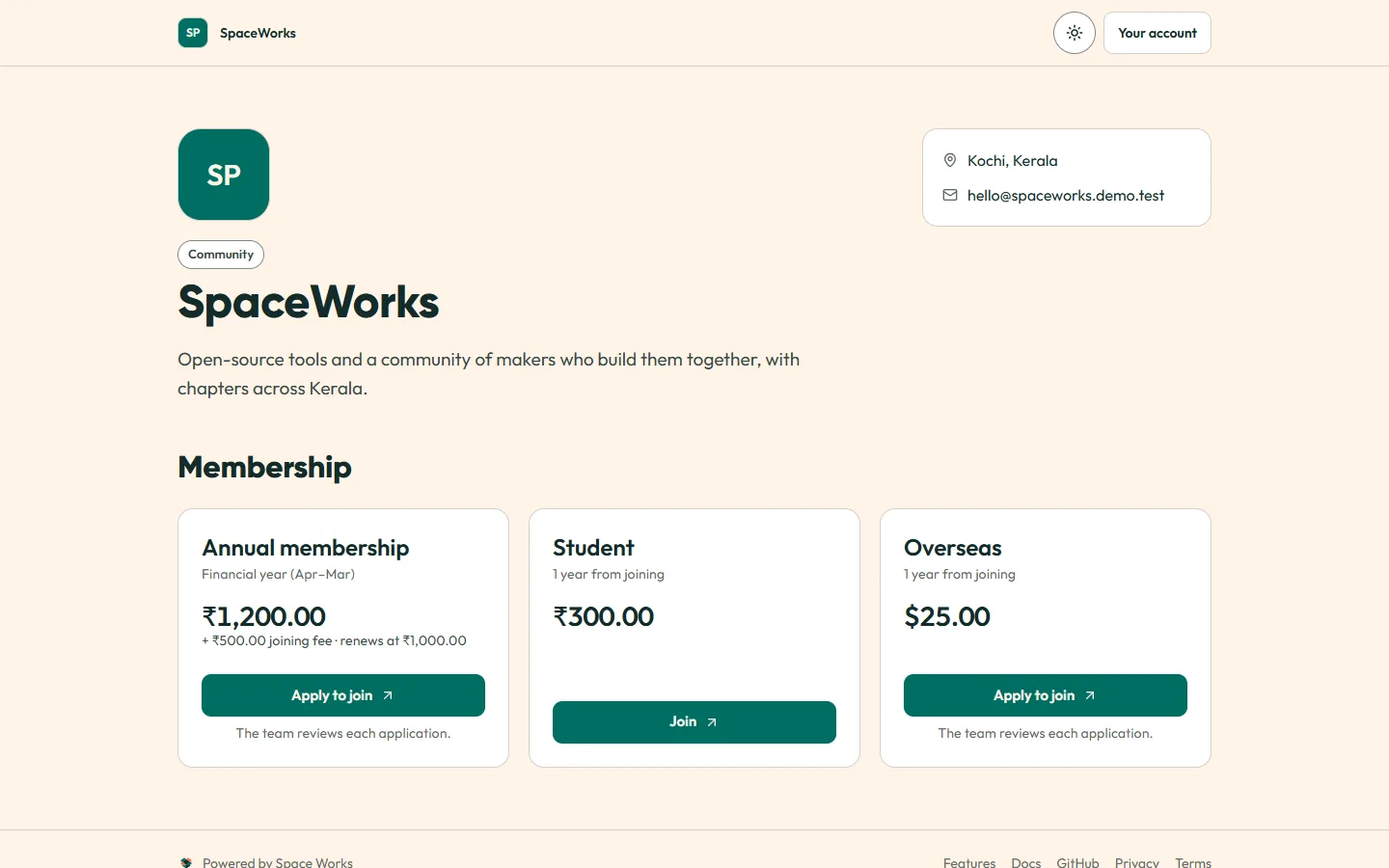
Every organisation can have a public page at /o/<slug> that tells people who you are and how to join, built from safe sections.
What it does
- The page lives at
/o/<slug>and links to each open plan's join page (/o/<slug>/join/<plan>). - Without a published page,
/o/<slug>shows a plain page with the organisation's details and its plans. A suspended organisation's page still shows but takes no new members; other organisations that aren't running show not found. - The editor is at Settings → Public page (
/dashboard/<org>/settings/public-page). It is a live visual editor with autosaved drafts, publishing and a version history. - Every unit has its own page at
/o/<slug>/a/<CODE>, built from the same page.
Blocks
Build the page from up to 30 blocks (sections). Add block in the editor groups them:
| Group | Blocks |
|---|---|
| Layout and design | Hero, Call to action, Columns, Button group, Icon list, Divider, Badges |
| Content | About, Free text, Image with text, Video, Image gallery, Downloads, Committee, Testimonials, Story timeline, Questions and answers, Links and socials, Contact, Map link, Numbers |
| Membership | Membership plans, Member card, Members' area |
| Live numbers | Live numbers, Live counts |
| Areas | Areas directory, Units directory |
A page has one Hero. The older blocks work as before: Numbers is up to 8 figures you type in, Live counts is the organisation-wide count, and Units directory lists your units.
The eight blocks added in 0.11.0:
- Live numbers: figures counted from your members, never typed in. Pick up to 8: Total members, Joined this year, Growth over a period (30, 90 or 365 days), Members by area, Members by plan and Members by grouping (choose the grouping). Show them as Numbers, Bars or a List, with an optional line above and a label of your own for each. On an area's page they count that area and everything under it.
- Areas directory: your areas as cards, each with its level, its contact details (its own, else the nearest above, else yours), a join link that opens the join form with the area already chosen, and a link to its own page. Start from the top level or from one area's sub-areas, show one level or the whole subtree, switch the contact details and join link off, and choose which plan the join link goes to.
- Columns: two to four columns, each holding up to 6 items: a heading, text, a button, an icon with a label, or an image.
- Button group: a row of up to 6 buttons, lined up at the start or centred. Each goes to a plan's join page, your plans, or a web link.
- Icon list: up to 12 short points, each with an icon from the list, as a list or a grid.
- Divider: a line, dashes, dots, a wave or plain space, with small, medium or large space around it.
- Badges: up to 12 small labels, such as affiliations or awards, each with an optional icon and link.
- Members' area: what members get after joining, as up to 8 points (card, receipts, renewals and updates to start), beside the sample card if you show it. The sample card never uses a real member.
Buttons in the hero, call to action, image with text, columns and button group can go to a plan's join page (or to your plans when that plan isn't open), the plans section, or a web link. On an area's page, join buttons carry the area's code.
The visual editor
The editor draws your page as visitors see it and lets you change it where it stands.
- Click a section to select it. A toolbar on the section moves it up or down, duplicates it, hides it, opens its settings and deletes it. Hidden sections stay in the page but visitors don't see them.
- Click text on the page to change it in place. Press Enter (or leave the box) to finish, and Escape puts the text back. In-place editing works for headings, short paragraphs, button labels and similar plain-text fields. Markdown bodies, and fields that are empty, are changed in the section's settings.
- Settings for the selected section open in the side panel, or in a sheet from the bottom on a phone. Fields that need attention are marked, with a Needs attention tag on the section.
- Add block opens the library with a search box and a small preview of each block. A new block goes after the selected section, or at the end.
- Sections lists every section top to bottom, for moving and for finding one. Drag a section by its handle, use the move buttons, or press Alt and the up or down arrow on a section.
- Page settings hold the tagline, the cover and the accent colour.
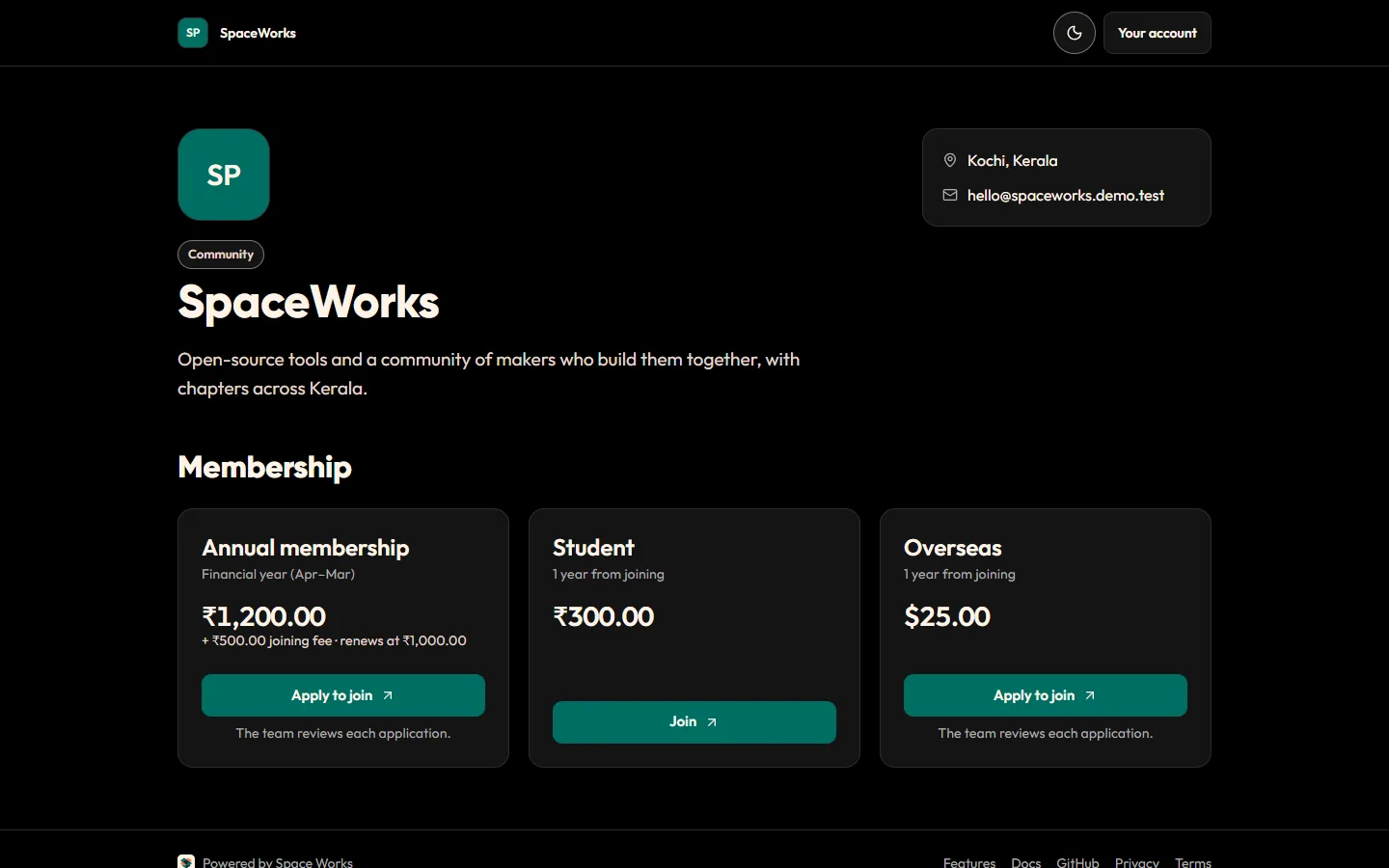
- Desktop, Tablet and Phone change the preview width; Light and Dark change its theme.
- Undo and Redo (Ctrl+Z, Ctrl+Shift+Z) step back and forward through this visit's changes.
- Open the live page opens
/o/<slug>in a new tab.
Edit, autosave and publish
- Open Settings → Public page.
- Start from a template (Club, Alumni association, Professional association, Makerspace or community, Sports club, Cultural society), or from the starter page. A template fills your draft with sections and placeholder text to rewrite, and keeps your accent colour and cover. If the draft already has content, the editor asks before replacing it.
- Edit as described above. About a second after your last change the page autosaves as a draft, and the bar says Draft saved. Visitors never see a draft. If a save fails the bar says so and offers Try again; if sections are invalid it says Not saved: fix the marked sections.
- Select Publish and confirm. The page goes live at
/o/<slug>and on every area page at once. - The menu beside it has Discard draft…, which goes back to the published page, and Unpublish…, which makes visitors see the plain page again while your content stays as a draft.
Warning: Autosave is last write wins. If two people edit the draft at once, the later save replaces the earlier one. Agree who edits, or check History before you publish.
Version history
Every publish is kept. History lists the last 20, newest first, with the time, who published it and how many sections it had.
- Select History in the toolbar.
- Preview shows the page as it was when published (links don't work in the preview).
- Restore to draft copies that version into your draft after a confirmation. Visitors see no change until you publish. Restoring is written to the audit log as
PUBLIC_PAGE_VERSION_RESTORED.
A draft is limited to 120,000 characters of content. The twenty-first publish drops the oldest version.
Tip: The page can use the organisation's own accent colour. It is checked for readable contrast in both themes.
Area pages
Each unit (area) has its own page at /o/<slug>/a/<CODE>, drawn from the same published page as the organisation's, so you design one page and every area gets it. On an area's page:
- the plans shown are the ones the area offers, and join buttons carry the area's code;
- Live numbers count the area and everything under it, with the same small-count hiding;
- Areas directory blocks list the area's sub-areas, and Contact blocks use the area's own email and phone when it or an area above sets them;
- the older Live counts block is hidden, because its organisation-wide numbers would sit under the area's name;
- a breadcrumb leads back up to the organisation, and the other areas beside it are listed at the foot.
With no published page, an area's page is a plain page of plans, areas and contact details. An unknown, archived or other organisation's code, and an organisation that isn't active, show not found. Area pages are in the sitemap for listed organisations. Set the contact details under units.
Safety and privacy
- Text is written in a simple Markdown subset and shown as plain text, never as raw HTML.
- Links must be web, email or phone links.
- Images and downloads must be your own uploads, and an image from another organisation is refused. Images and PDFs are 5 MB at most; downloads are PDFs only, checked by their first bytes and served only as downloads.
- Live counts and Live numbers show aggregates only: current members (an active or grace membership) in total, by plan, by unit or by grouping, and how many joined. You choose which ones the block shows.
- Names are never shown.
- Any count under 5 is hidden. When one row of a breakdown is hidden, the next smallest is hidden too, so it can't be worked out from the total.
- Counts are cached for a few minutes.
- The member card section draws your approved card design with a made-up name and number. It never uses a real member. It uses the organisation default design, otherwise your first plan's own design, otherwise the built-in design. Visitors can load the image only while the published page shows the section; staff can always load it in the editor's preview.
- Videos come from YouTube or Vimeo only.
- Nothing loads from either site until a visitor presses play.
- YouTube plays in its privacy-enhanced mode (youtube-nocookie.com) and Vimeo with do-not-track.
- The page's security policy allows exactly those two players, on
/o/*pages only. - The map link opens Google Maps, OpenStreetMap, Apple Maps or Bing Maps. The page never embeds a map.
- Publishing, unpublishing, restoring a version and uploads are written to the audit log. Autosaves are written at most once every 10 minutes, and no content is recorded.
- Button and link addresses in the new blocks pass the same safe-link check, and a picture in a column must be one of your own uploads.
Who can use it
| Task | Permission |
|---|---|
| Open the editor, preview and version history | org.settings ◆ |
| Save drafts, publish, unpublish, restore a version, upload images and PDFs | org.settings ◆, held for the whole organisation |
| Visit the published page | Anyone |
◆ Staff holding their role for one unit can open the editor but not change the page. The starter Manager role holds
org.settings; Treasurer and Viewer don't.
Turning it on or off
- Publish and Unpublish decide whether your custom page shows, on the organisation's page and on every area page. Unpublished, visitors see the plain page.
- Whether the organisation is listed in the directory at
/organisationsis a separate setting, made by the platform super admin. Unlisted organisations are still reached by their link. - Each section can be hidden without removing it.
- An organisation's own outside analytics on its public pages is set under web analytics.
Screenshots
API
There is no public REST API yet. The sample card image is GET /api/o/<slug>/sample-card; it and the other public
routes are listed in webhooks and endpoints. The source is on
GitHub.
Related
- Plans and join forms
- Units for areas, their codes and their contact details
- Groupings for the grouping figures in Live numbers
- Member cards for the approved design the sample card draws
- Organisations for public and unlisted organisations
- Web analytics for visit counts and outside providers
- Owner manual
From SpaceWorks-Organization/docs/features/public-page.md at 7cd1441, updated 2026-11-21. Suggest a change