Space Works Organization · Features
Notifications
Member emails and messages in your organisation's name, by email, text, WhatsApp or chat, and short team alerts in your own chat.
What it does
Notifications cover three things: member emails, member messages on other channels, and team chat alerts. Every one is queued in the same database transaction as the change it reports, so a change that fails or rolls back sends nothing, and the background worker delivers it afterwards with retries.
Member emails
- Notices, reminders, receipts and credit notes, invites, cards, certificates, and refund and erasure replies go out in the organisation's name.
- An organisation can send them through its own SMTP, Amazon SES, Resend or Postmark account. Without one they come from the platform's address in the organisation's name, with replies going to its contact email.
- Sign-in emails, such as password resets, verification codes and new-device alerts, always come from the platform.
- Send a test email checks the settings before you rely on them. Addresses that bounce for good or complain are put on a suppression list and are not emailed again.
- Receipts, cards and certificates travel as PDFs drawn when the email is sent, never stored.
Member messaging
- Besides email, members can be reached by text message, WhatsApp, Telegram, Slack, Discord or Mattermost.
- Every member message is one of these kinds: application received, approved and declined; payment due and received; membership started and renewed; renewal due; membership ends today; grace period started and ending; membership lapsed; payment being checked; membership card; certificate; refund decision; membership revoked; and membership ended by the member.
- Per-kind routing. For each kind, Settings → Messaging lists up to four channels in the order to try them. A member gets each message once, on the first channel they can be reached on; the others are only a fallback. Without a routing choice, a message goes by email.
- A channel is skipped for a member when it isn't connected, the member hasn't linked it or agreed to it, it is in quiet hours, or (WhatsApp) no template is mapped for that kind. A channel that refuses for good, such as a blocked bot or a bad number, is remembered and the next one is tried. An outage is retried on the same channel.
- Two levels of connection. The super admin sets up the platform's channels and decides whether organisations may use them. An organisation's Owner can connect its own, which always comes first.
- Quiet hours. An organisation can set a daily window in its own time zone. Texts and chat messages queued inside it wait until it ends. Email is never held back.
- WhatsApp templates only. A business can start a WhatsApp conversation only with an approved template, so each kind and language is mapped to one (a Meta template name or a Twilio content SID, with its variables in order). A kind without a template skips WhatsApp.
- Wording. Each kind has an email subject, heading and text, and a short text (up to 1,000 characters) for text messages and chat apps, with a segment counter.
- The message log keeps the kind, channel and delivery state, never the text, a number or an address.
Linking a channel from /account
- The member opens Account → Notifications (
/account/notifications). Each organisation they belong to shows the channels it offers; email always works. - For text message or WhatsApp, they enter their number with its country code and confirm the code texted to it. This needs the platform's text-message provider.
- For Telegram, Slack, Discord or Mattermost, they get a one-time code (15 minutes, once, five tries) and send it to
the bot: Telegram opens the bot with the code, Slack takes a direct message, Discord takes
/link code:<code>and Mattermost takes/link <code>. - Once linked, they switch on Send me \<organisation>'s messages on \<channel>. The same page lists their recent messages, with channel and status.
Consent and the stop link
- Messaging beyond email is opt-in, per organisation and per channel.
- Every text and chat message ends with a stop link. It opens a page with one button, so a link preview changes
nothing. A STOP or UNSUBSCRIBE reply on text or WhatsApp,
/stopin Discord and/link stopin Mattermost end it at once too. Members can turn messages back on from their account. - Emails say where to choose how the organisation contacts the member, and are never held back.
Team chat alerts
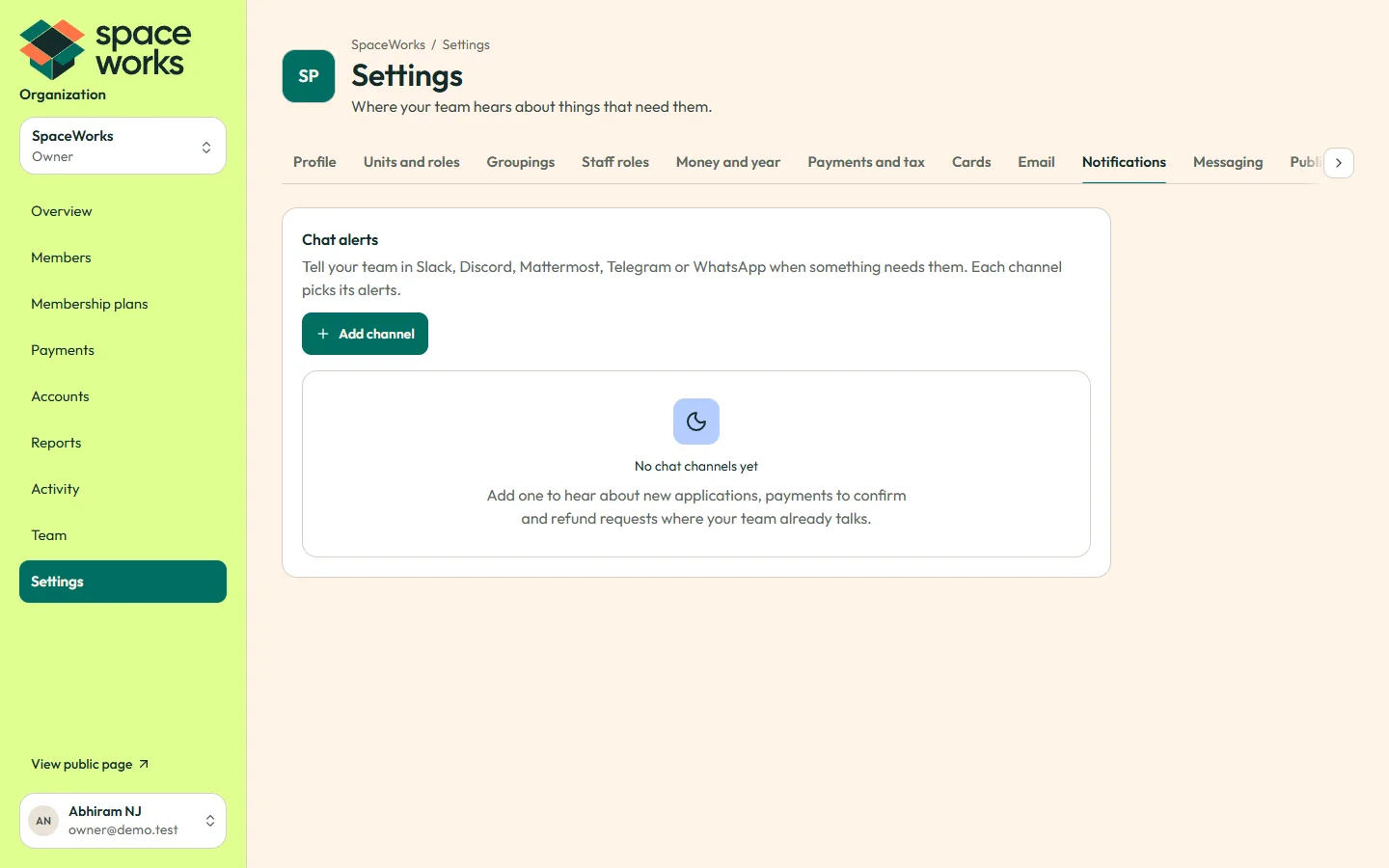
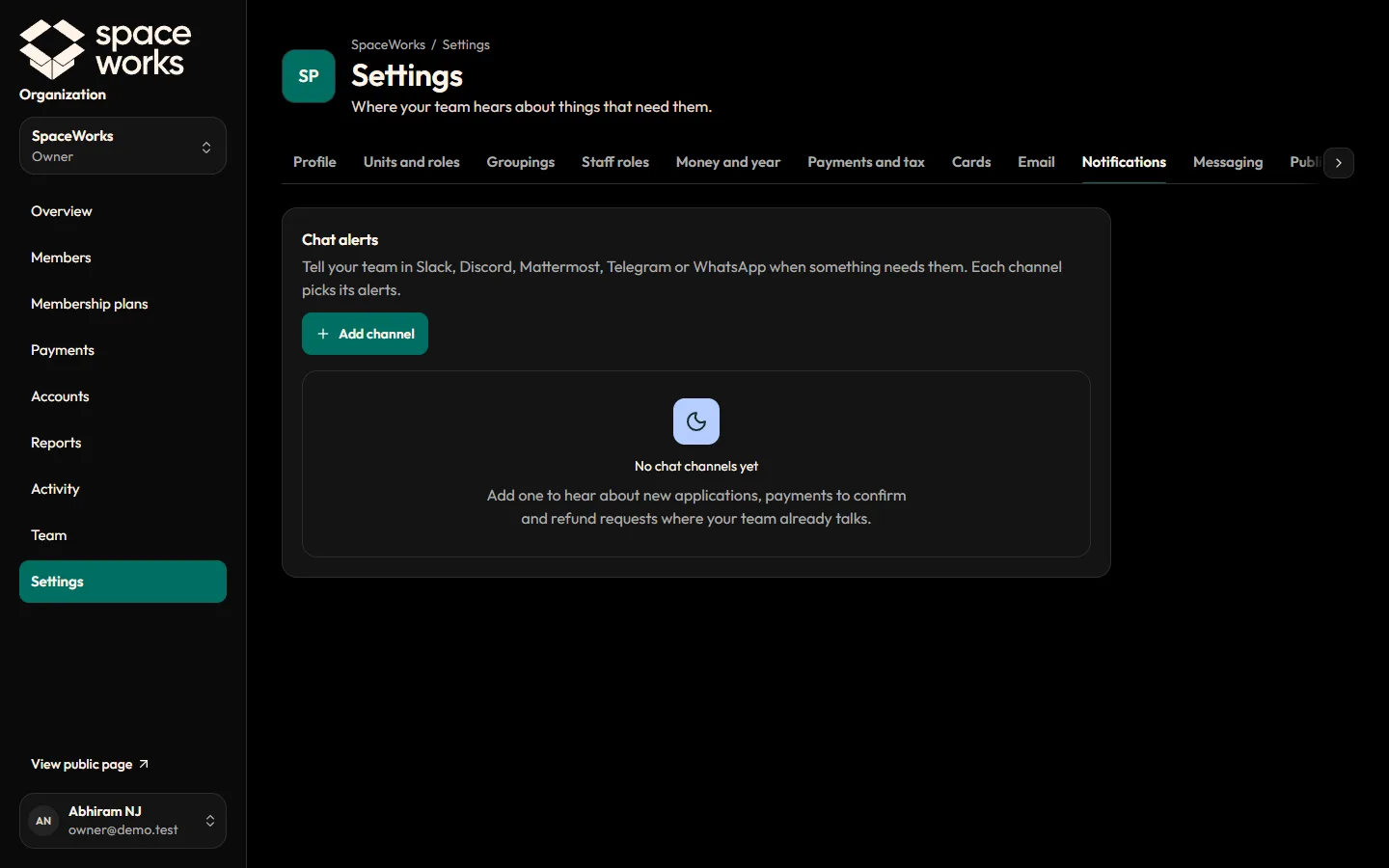
- Settings → Notifications holds up to ten chat channels per organisation: Slack, Discord, Mattermost, Telegram, WhatsApp or a signed webhook.
- Each channel picks its alerts: new application to review, payment received, payment waiting to be confirmed, member asked for a refund, member asked to erase their details, member left, monthly summary, and a daily digest of reminders sent.
- Alerts are short: what happened, member number, plan, amount and a dashboard link. Names appear only when the channel switches on Show member names; erasure requests never show a name.
- A channel its service no longer accepts (a deleted webhook, a removed bot) is switched off and its error shown.
- WhatsApp alerts use one approved Utility template named
team_alertwhose body is exactly{{1}}.
Who can use it
| Task | Who | Where |
|---|---|---|
| Own email settings and wording of member emails | org.settings ◆ |
Settings → Email |
| Team chat channels | org.settings ◆ |
Settings → Notifications |
| Routing, quiet hours and WhatsApp templates | org.settings ◆ |
Settings → Messaging |
| The organisation's own messaging connections | Owner (org.delete ★) |
Settings → Messaging |
| Platform email provider | Super admin | Super admin → Settings |
| Platform messaging channels and sharing them | Super admin | Super admin → Messaging |
| Platform text-message provider | Super admin | Super admin → Auth |
| Linking channels and consent | The member | /account/notifications |
◆ Staff holding their role for one unit can read these screens but not change them. The starter Manager role holds
org.settings; others see that only the Owner can change connections, because they hold secrets.
Turning it on or off
- Own email: Settings → Email → Send member emails through these settings. Off, member emails use the
platform's provider. Email is off for the whole install until a platform provider is set up (
EMAIL_PROVIDERor Super admin → Settings). - Wording: Save wording per kind; Use the standard wording goes back to the platform's text.
- Member channels: each connection has Use \<channel> for members. Switched off, nothing goes through it. A connection whose last test failed reads Unavailable and sends nothing until Send a test goes through.
- Platform channels for organisations: Super admin → Messaging → Organisations may use these channels.
- Quiet hours: Quiet hours start and Quiet hours end on Settings → Messaging; leave them empty for none.
- Chat alerts: each channel chooses its alerts and can be removed; Send test checks it.
- Operator: secrets need
PAYMENT_SECRETS_KEY.MESSAGING_MATTERMOST_HOSTSallows Mattermost servers on a private network, andMESSAGE_LOG_RETENTION_DAYS(default 90) sets how long the message log is kept. See the configuration reference.
Note: Plans paid in hand only never carry a pay link. Their reminders carry the payment instructions instead.
Screenshots
API
There is no public REST API yet. Provider webhooks for email bounces, text-message delivery reports, messaging bots and the stop link are listed in webhooks and endpoints. The source is on GitHub.
Related
- Email and chat notifications, for operators
- Renewals for the reminders the membership sweep sends
- Member portal
- Sign-in for phone codes and the platform's text-message provider
- Security
- Owner manual
From SpaceWorks-Organization/docs/features/notifications.md at 7cd1441, updated 2026-11-21. Suggest a change