Space Works Organization · Features
Groupings
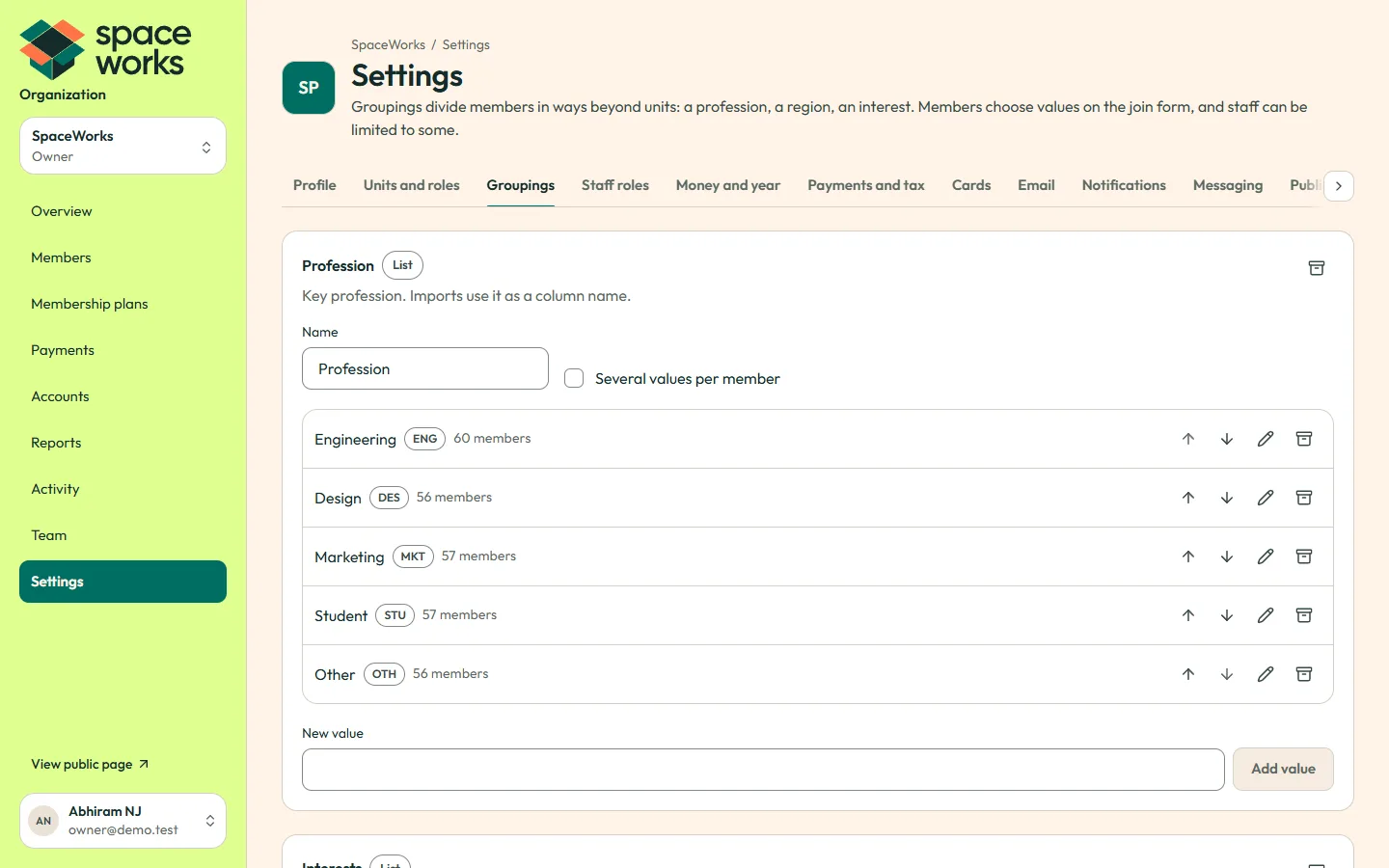
Groupings divide members in ways beyond units, such as a profession, a region or an interest, and can limit staff to one slice.
What it does
- An organisation creates the groupings it needs, up to 30. Each is a List of values, or a Tree where values sit under values (for example Region, then Country, then State), up to six levels deep and 1,000 values per grouping.
- A grouping lets each member hold one value, or several when Members may hold several values is ticked.
- Each value has a name of up to 80 characters and a code of 1 to 12 letters or digits, unique in its grouping.
- Members choose their values on the join form, through a plan question of the type Grouping. It shows as a select, as tick boxes when several values are allowed, and with indented names for a tree. Archived values are never offered.
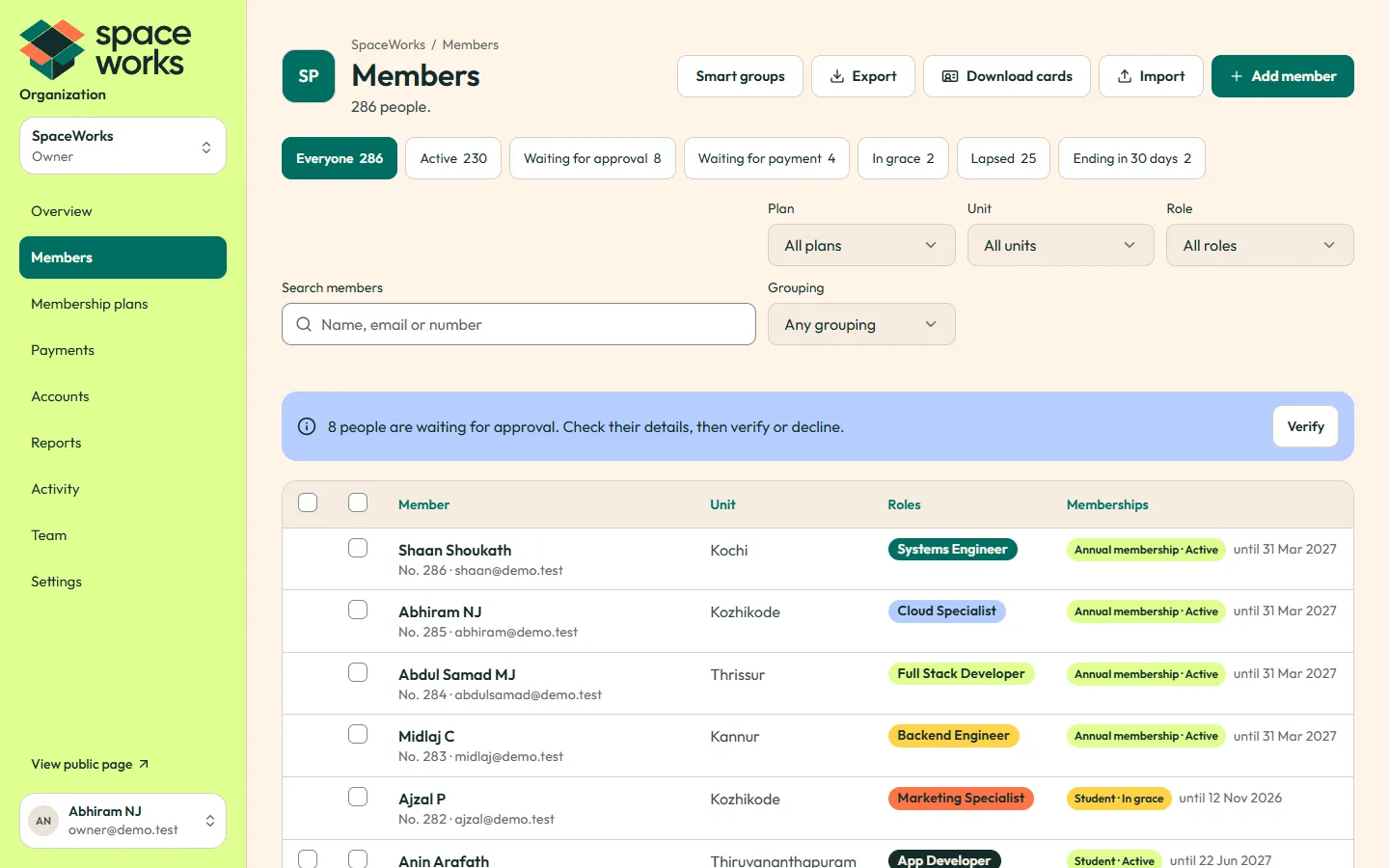
- Staff set values on the member's page, in bulk from the members list, and by import.
- Staff can be limited to a grouping value, the way they are limited to a unit. A tree value covers everything under it.
- Smart groups are saved conditions over members, used to filter the members list, exports and card downloads, and to decide who may renew a plan.
- The units report shows a breakdown of members by any grouping, as counts only.
Create a grouping
- Open Settings, Groupings (
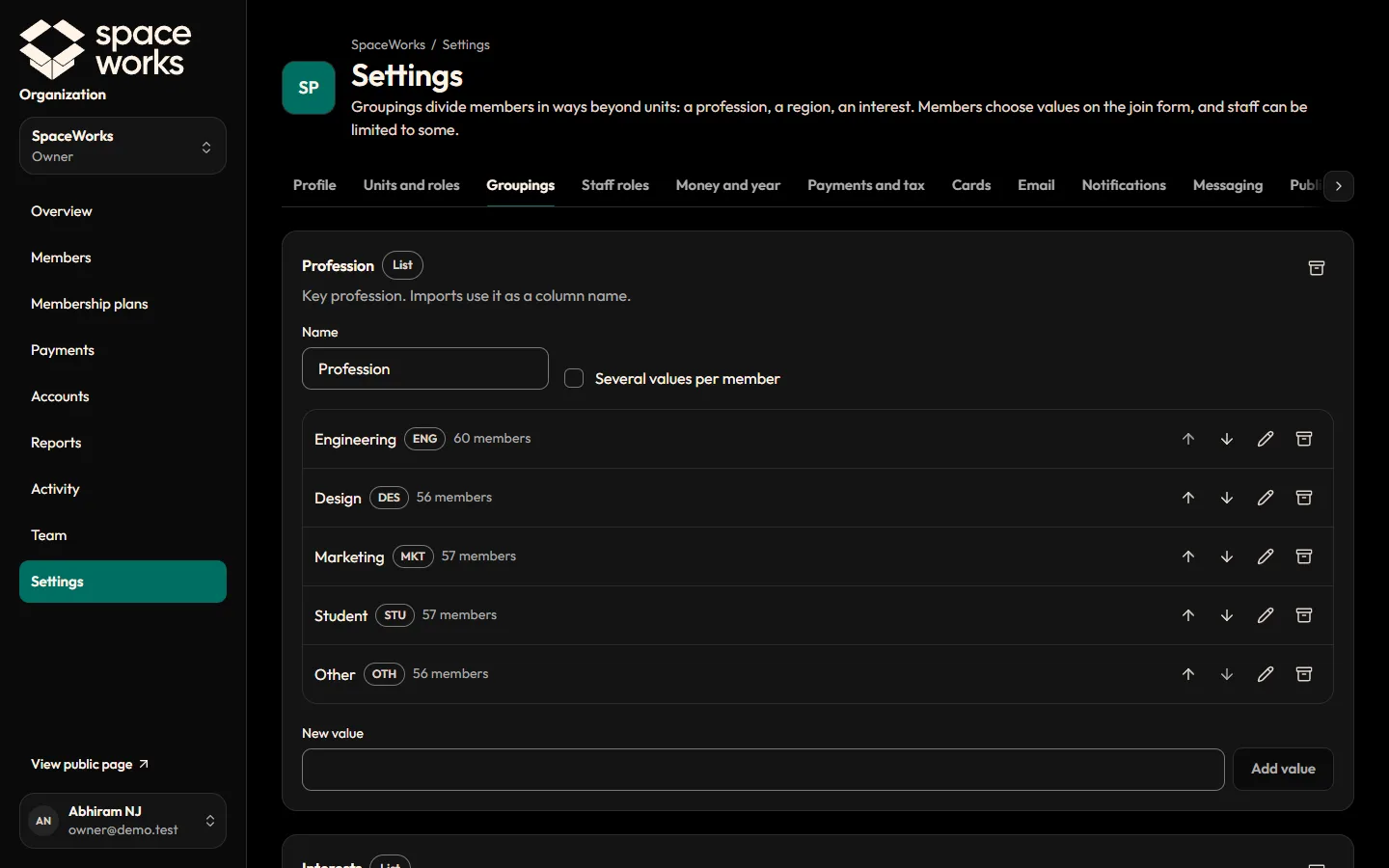
/dashboard/<slug>/settings/groupings). - Under New grouping, give it a Name (for example Profession), choose the Shape (List or Tree) and decide whether members may hold several values. Select Create grouping.
- Add values with Add value. In a tree, add values under a value, use Move to place a value (with everything under it) somewhere else in the same tree, and reorder values up or down.
- Add the question to a plan: open the plan under Membership plans, add a join-form question of the type Grouping and choose the grouping.
A grouping that allows several values can't go back to one value each while any member holds several.
Set members' values
- On the member page: change the member's values in the groupings panel.
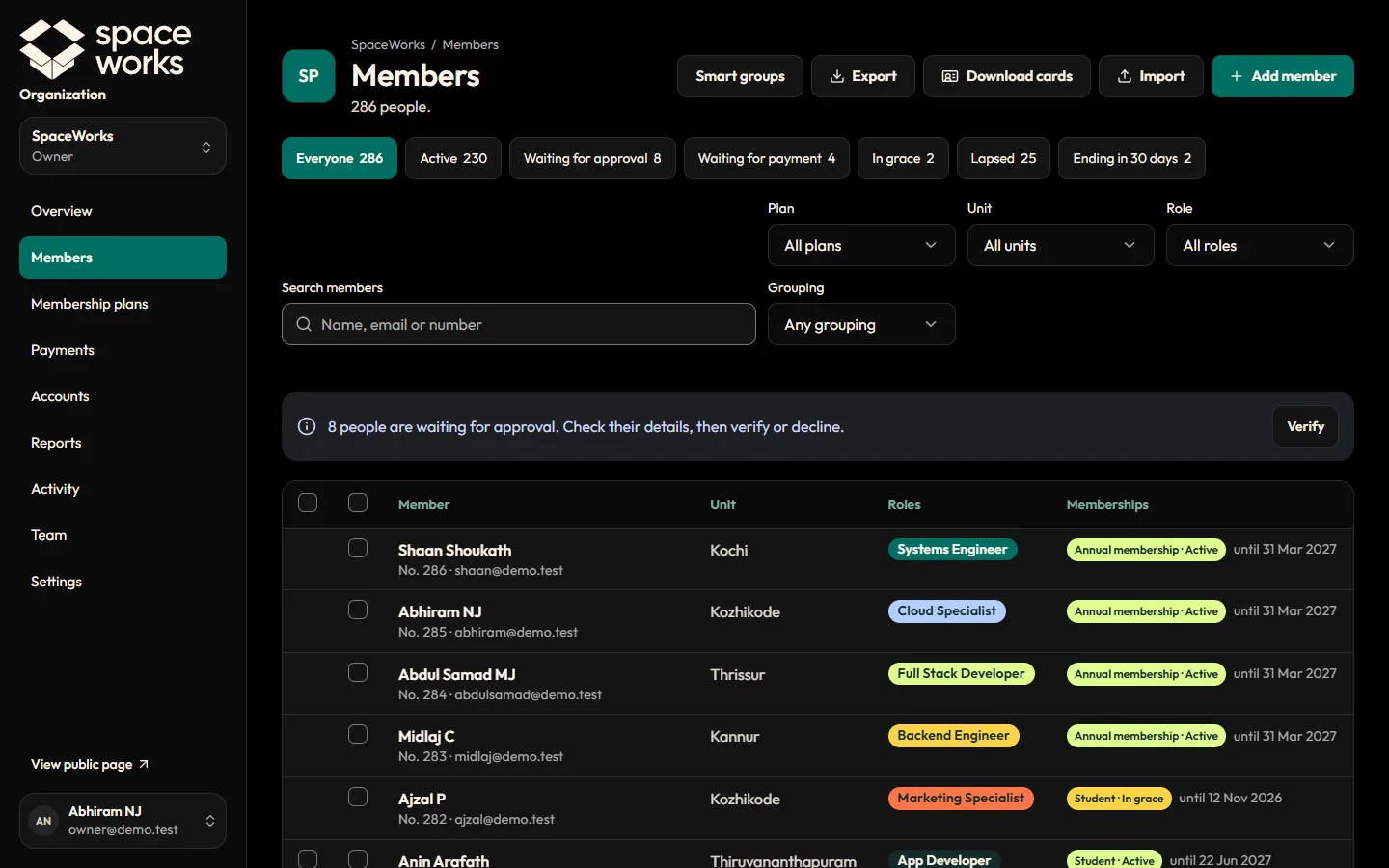
- In bulk: on Members, select members, choose a Grouping and a Value, then Set value (or Add value for a grouping that takes several). Clear grouping removes the grouping from the selected members after a confirmation.
- By import: in the import wizard, map a column to the grouping, shown as "Profession (grouping)". Each cell names a value by its name or code, in any case. Where several values are allowed, separate them with a semicolon. The preview flags any cell that doesn't match, and the import refuses the same cells.
How staff limits combine
- Two values of the same grouping widen the limit: the person reaches members holding either.
- Limits on different groupings, and a unit limit, narrow it together: a member must be inside every one.
- Someone limited to Doctors can give only Doctors, or a value under it, and can never move a member out of their reach.
Smart groups
Open Members, then Smart groups (/dashboard/<slug>/members/smart-groups). A smart group combines conditions with all, any or none:
- plan, status, unit and grouping values;
- a join-form answer that equals, contains or is one of some values;
- joined or renewed before or after a date, or a membership ending within a number of days;
- age, from a date-of-birth answer;
- state, city and payment due.
A smart group is worked out each time it is used and is never stored against members, so it is always current. An organisation can save up to 100.
Tip: On a plan's renewal rules, Who may renew takes a smart group, so only members in that group can renew from their account.
Who can use it
- Creating groupings and changing their values needs
groupings.manage● (ORG_WIDE_ONLY). It is for the whole organisation only, so staff limited to a unit or a grouping can't use it, even to read. - Setting a member's values needs
members.manage, and only for members inside the person's own reach, with values inside their limits. - Seeing smart groups needs
members.view; saving and deleting them needsmembers.manage. - Limits are given with
team.manage: the invite form's Limit to a grouping field, or Limit to a grouping… on a person's row on the Team page. Granting follows the usual rule: strictly less than you hold, inside your own reach. - Staff limited by a grouping see and act only on members holding a value inside their limit: lists, counts, payments, cards, reports, exports and card scans. A card outside their reach shows only its public check.
Turning it on or off
Groupings are optional. An organisation with none sees nothing of them on its screens. Create them under Settings, Groupings, then add a Grouping question to a plan's join form.
Archiving a grouping or a value removes it from the join form and pickers. Members keep the values they hold, for history. Archiving a value archives everything under it, and restoring it needs the value above it restored first.
Screenshots
API
There is no public REST API yet. Smart groups also filter the member and card exports, which are listed on webhooks and endpoints. The source is on GitHub.
Related
- Units, the other way to divide members and limit staff.
- Staff and roles for invites, limits and granting.
- Plans and join forms for the Grouping question.
- Renewals for renewal rules that use smart groups.
- Reports and analytics for the grouping breakdown.
- Limited staff manual.
From SpaceWorks-Organization/docs/features/groupings.md at 7cd1441, updated 2026-11-21. Suggest a change