Space Works Organization · Features
Member cards
Each member gets an ID card with a QR code they can show on a phone or print, drawn live from a design only the Owner approves.
What it does
- One live card per member and plan. A card is issued when a membership first becomes active. Renewals and reinstatements keep the same card, because the QR code always shows the membership as it is right now.
- The QR code carries a random token and opens the check page at
/verify/<token>. Reissuing a card revokes the old one, so an old QR shows "Card replaced". - Drawn on demand, never stored. Cards are drawn from the live design each time: in the member's wallet, on the check page, in downloads, emails and bulk downloads. The PDF and the PNG always match.
- Card numbers follow a pattern with a running sequence, set for the organisation, for each member role and for each area that has its own design.
- Bulk downloads give A4 print sheets, one card per page, or a ZIP of PDFs.
- Members see their live cards on their account page (
/account) and download them as PDF or PNG, when the organisation has member accounts switched on.
The card designer
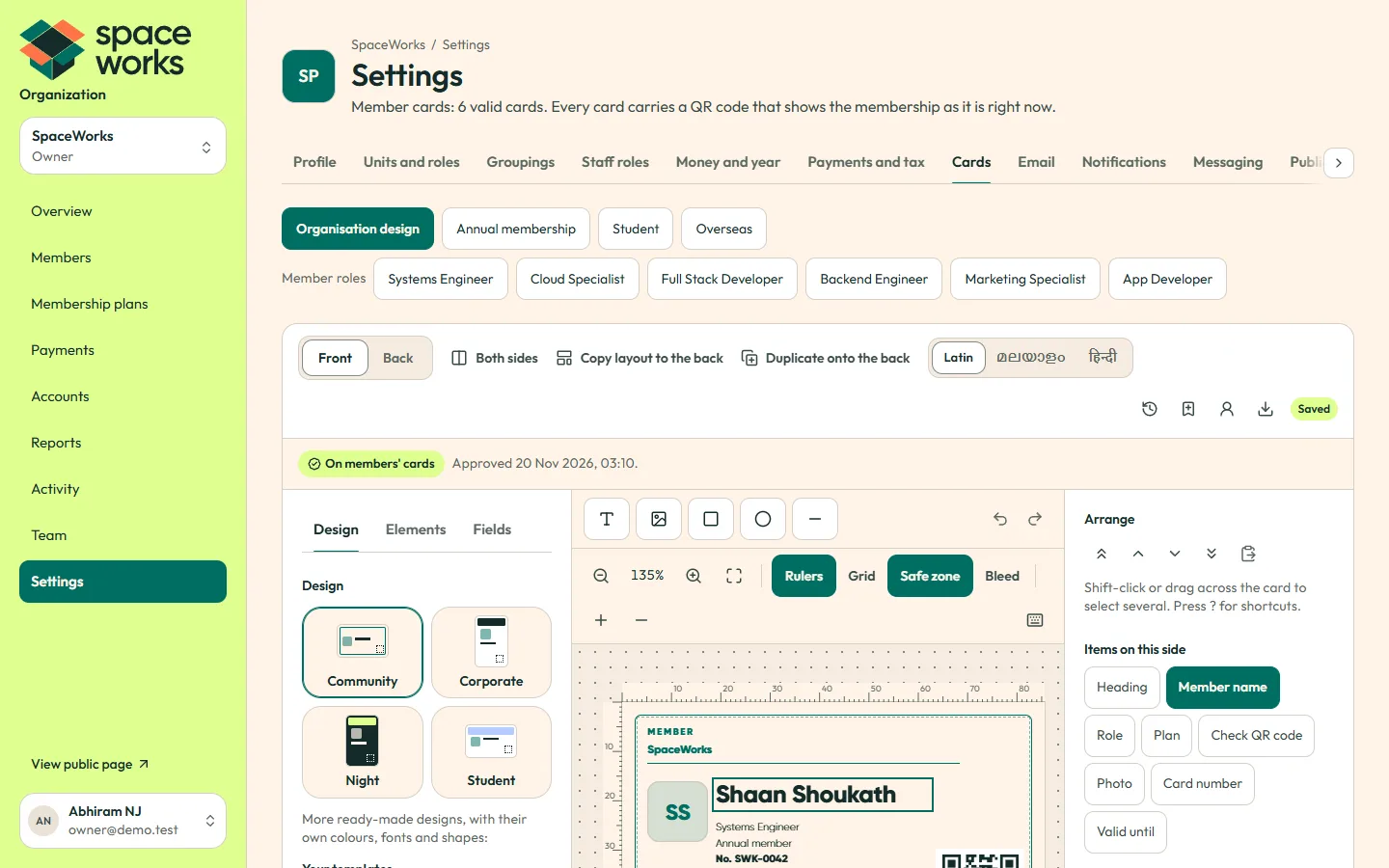
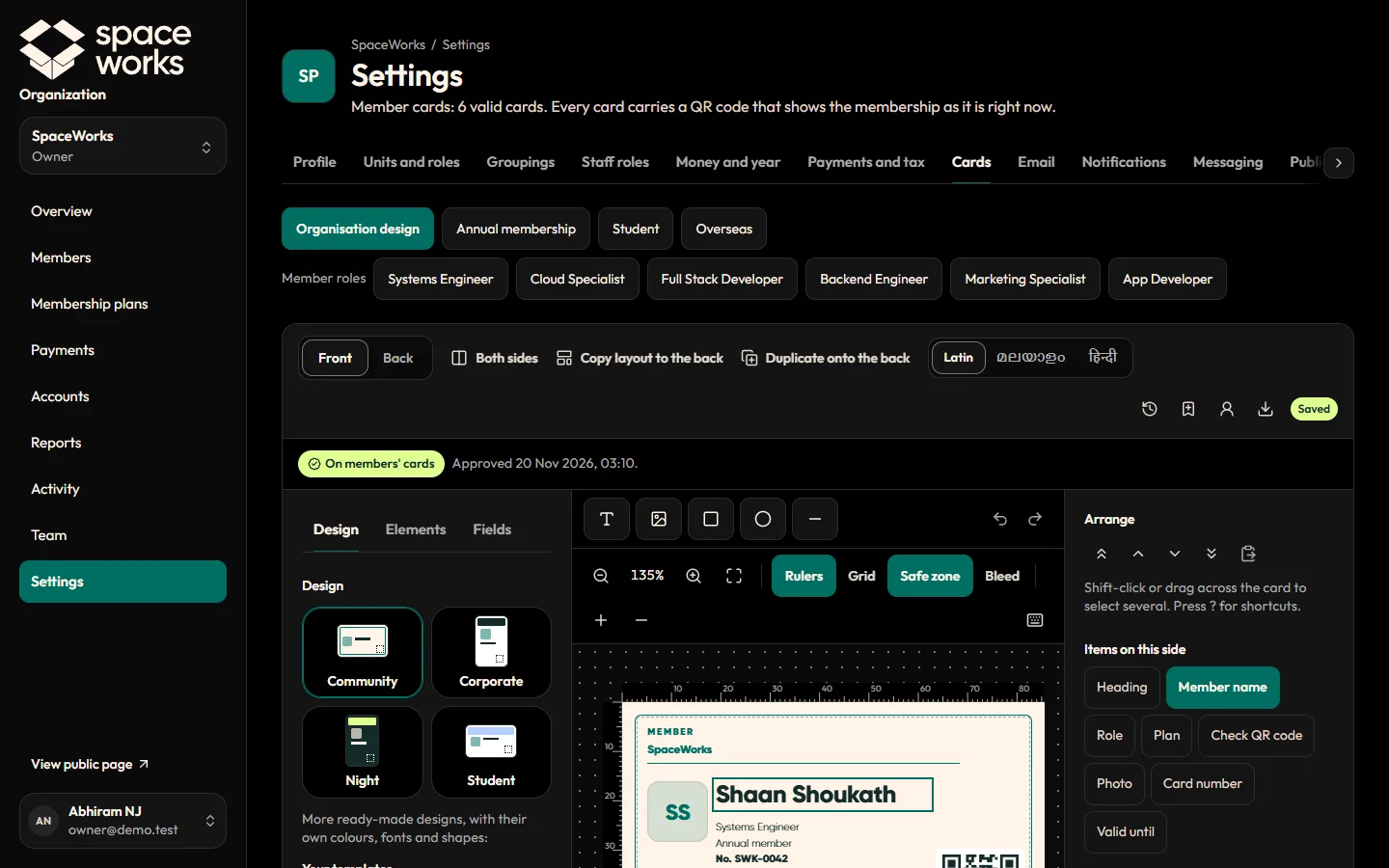
Settings → Cards (/dashboard/<org>/settings/cards) shows how many valid cards there are and opens the designer.
- Start from a template (or one of Your templates, saved with Save as organisation template), then edit the front and the back the same way. Both sides shows them side by side on wide screens; Copy layout to the other side and Duplicate onto the other side reuse a side, and copy and paste work across sides.
- Elements adds shapes, top and bottom bands, side strips, corners and frames, badges and tags (Member,
Verified, Staff), icons, dividers, the QR code and a barcode of the card number, photo frames (circle, rounded,
hexagon), text styles, gradients, patterns, pictures and the brand kit's logos. Fields inserts the member's
details (
{name},{role},{number},{unit},{plan},{validUntil},{organisation}and the contact details) into text. - Select with a click, Shift-click or a drag around items; drag to move, use the handles to resize and turn, and follow the pink guides as items snap to the edges, centre, safe zone, your own guides from the rulers and each other. Align, distribute, group, flip, order, duplicate, copy style, lock and hide from the Arrange panel, and type exact sizes in Position. Zoom from 50% to 400% and turn on the grid, bleed and safe-zone overlays. Press ? for every shortcut; everything also works from the panels with a keyboard or screen reader.
- Text can be curved, outlined, hollow, highlighted or shadowed, change case and shrink to fit its box. Pictures can be cropped and zoomed, masked, rounded, adjusted (brightness, contrast, saturation, blur), shadowed and given alt text. Shapes take gradients, patterns, outlines and shadows.
- Colour fields offer the brand kit first (logo variants, colours picked out of the logo with contrast hints, preferred fonts), then the colours already in the design, an eyedropper and a picker. Replace this colour everywhere swaps a colour across both sides.
- Version history keeps recent drafts and every approved design (30 per design); restoring one makes it the draft again. Preview with a member shows the card with a member from your own units; downloads give the draft as a PNG of one side or a PDF, optionally print-ready with bleed and crop marks.
- Organisations without a logo can Make a logo in Settings → Profile (initials, a shape, colours, a card font and an optional icon), or crop and zoom an uploaded one.
- Fonts are Gilroy plus a library of open-licence fonts. Card text is shaped for extended Latin, the rupee sign, Malayalam and Devanagari, and printed as outlines. Undo and redo work with Ctrl+Z and Ctrl+Shift+Z.
- Designs by scope: the organisation's default, a plan's own design, a member role's own design, or an area's own design. A card uses, in this order: 1. its member's main role design, if it has one; 2. the design of the member's own area, or else of the nearest area above it that has one; 3. its plan's design; 4. the organisation default; 5. the built-in design.
Role cards lists each member role with its status and how many live cards use it. Area cards (the area picker beside it) lists the areas inside your reach in tree order, with their level and code, and shows which have their own design, a draft or a change waiting for approval.
Designs for an area
An area is any unit, at any level (see units). An area's own design suits a chapter or a branch that prints its own look, prefix and contact details.
- Open Settings → Cards and choose Choose an area beside the other scopes. Search by name, code or level.
- A new area design starts from the organisation's live design, with a prefix made from the area's name. Edit it like any other design.
- The prefix must differ from the organisation's, so card numbers never repeat one already printed.
- Save as a draft. The Owner approves it as usual; until then members in the area keep the card they have.
- The Owner can send an area back with Use organisation design (or the same button named after the area above it), which removes its own design. Its members' cards then use the next one in the order above.
Members in the area, and in the areas under it that have no design of their own, use it. An archived area's design stays live, so its members keep their card. Brand kit and templates stay organisation-wide. Preview with a member shows the area's contact details; the Download preview with sample details still uses the organisation's.
Draft and approval
- Staff with
cards.designedit the design. Changes are saved as a draft and members' cards don't change. - The bar shows Waiting for the owner's approval until the Owner decides.
- The Owner presses Approve and publish, which copies the draft into the live design. Discard changes throws the draft away.
- Cards, numbering and the check page read only the approved design. A draft is never drawn on a member's card.
Card numbers
The pattern uses literal text (capital letters, digits, spaces and . / _ -) and these tokens:
| Token | Meaning |
|---|---|
{PREFIX} |
The design's prefix |
{SEQ} or {SEQ:4} |
The running number, optionally zero-padded. Required |
{MEMBER} or {MEMBER:4} |
The member number |
{YYYY} or {YY} |
The year of issue, in the organisation's time zone; the sequence restarts each year |
{UNIT} |
The code of the member's own unit |
{U1} to {U4} |
The code of the member's unit at that level; NA when there is none |
The default pattern is {PREFIX}-{SEQ:4}.
A new card is numbered from one design only: the member's main role design, else the nearest area design, else the organisation's. Each of them keeps its own running sequence, so an area's cards count up from the area's own start. Adding area numbering never changes a number already issued: cards keep their numbers when an area gets a design, when a member moves to another area, and when a unit's code changes.
A number belongs to a membership: renewals, reinstatements and reissues keep it, and a change of main role reissues the card with the same number. Only a new registration after a membership ended takes a new number. Unit codes are read when the number is made, so moving a member or a unit never renumbers a card.
Contact details on the card back
Built-in card backs print the contact details of the member's area: its email, phone and website. Each detail is taken
from the member's own area, else the nearest area above it that sets it, else the organisation. Set an area's details
on its page (see units). The {website}, {email}, {phone} and {contact} fields in the designer print the
same values, so a back you design yourself can use them too.
Issue, reissue and revoke
On a member's page (/dashboard/<org>/members/<member>), the Cards panel shows one card per plan:
- Issue card when a plan has none.
- Email card sends the card as a PDF, through the organisation's email settings.
- Reissue replaces a lost card with a new QR code and the same number.
- Revoke card ends it, and its QR then shows "Card revoked".
Bulk downloads
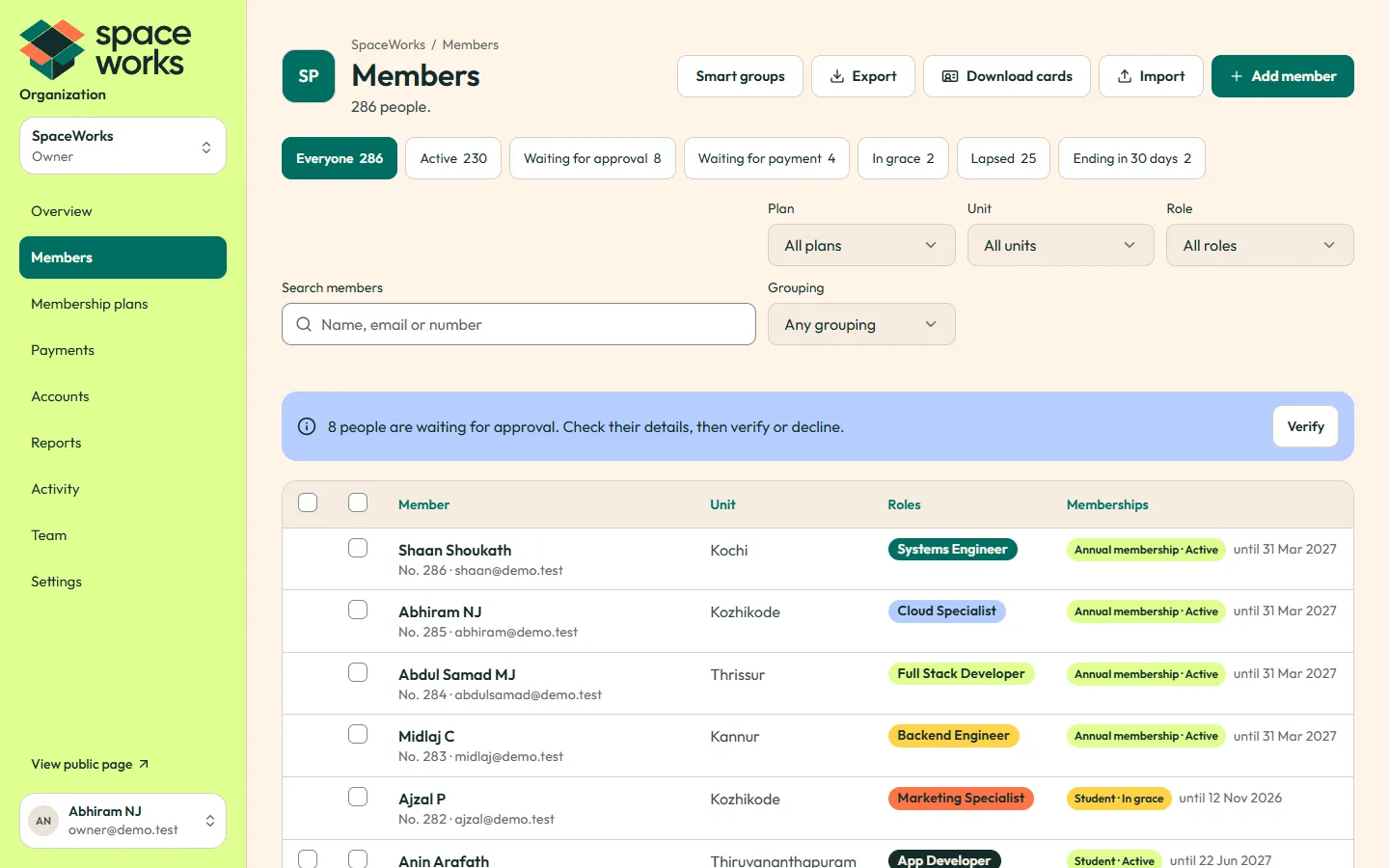
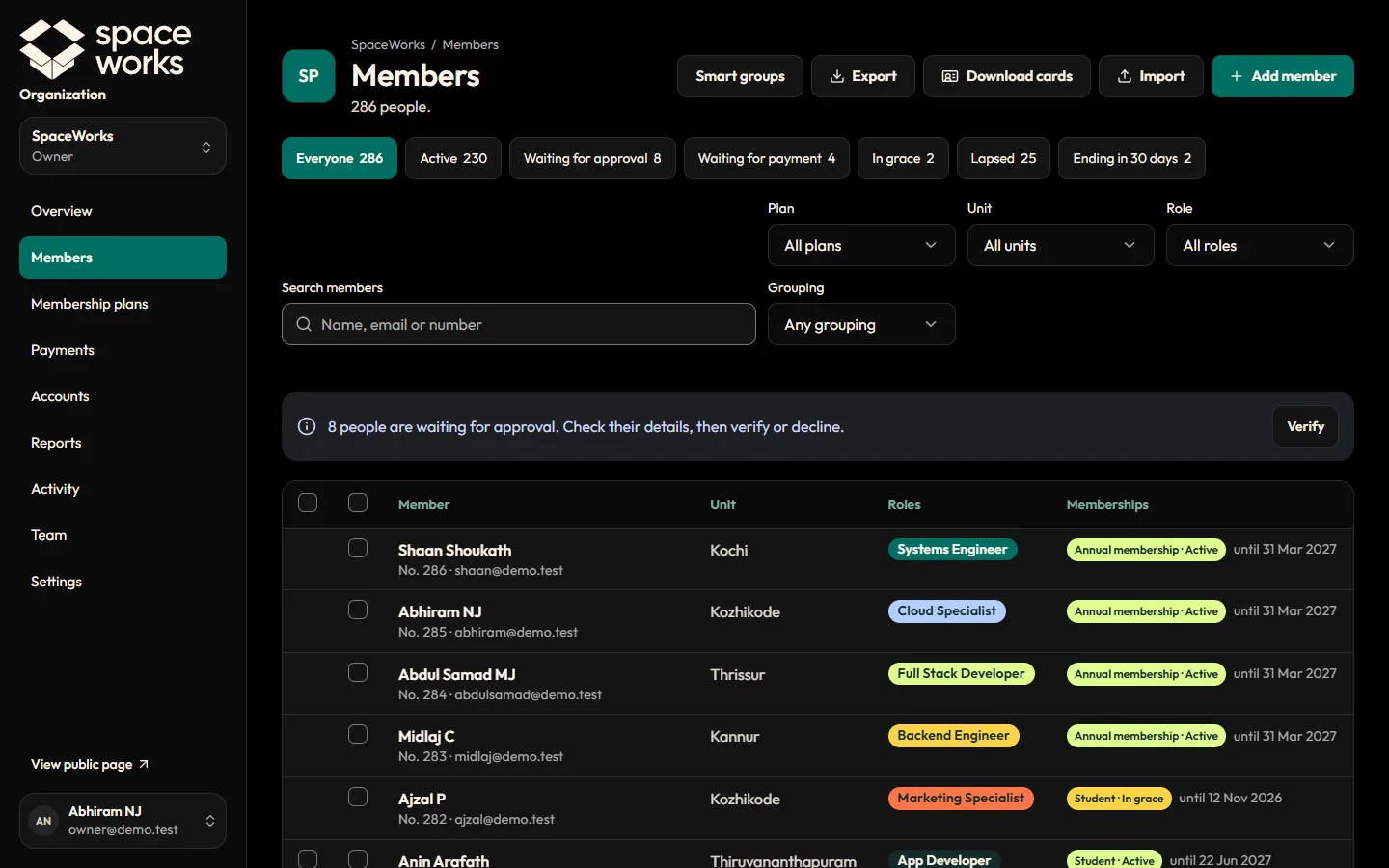
From the members list (/dashboard/<org>/members), Download cards takes the list's filters (status, plan, unit,
role, search, grouping value or smart group) and offers:
| Download | What you get | Up to |
|---|---|---|
| A4 print sheets | Cards on A4 pages with crop marks, each front beside its back | 1,000 cards |
| One card per page | Card-size pages for a PVC card printer | 1,000 cards |
| ZIP of PDFs | One PDF per member, named by card number | 300 cards |
Only one bulk download is drawn at a time; when one is running, the next is asked to wait. Every download is written to the audit log.
Scanning a card
- Staff of the card's organisation who can read members, have an authenticator, and have the member inside their unit and grouping scope see that organisation's member record, with the member page's actions. The scan is written to the audit log.
- Everyone else, including other organisations' staff, sees the public check: whether the card is valid, and the card itself only while it is live and valid or in grace, the member has not been erased and the organisation is active. A suspended organisation's cards can't be checked.
Who can use it
| Task | Permission |
|---|---|
| Open the designer | cards.design ◆ |
| Edit designs, including area designs, and save drafts | cards.design ◆, held for the whole organisation |
| Approve a design, or go back to the organisation's design | cards.approve ★ |
| Issue, reissue, revoke and email cards, and bulk downloads | cards.manage |
| See a scanned member's record | members.view, with an authenticator |
◆ Staff holding their role for one unit see the designs read-only. ★ Only the Owner holds cards.approve; a platform
super admin acting as owner can approve too. The starter Manager role holds cards.manage and cards.design.
Turning it on or off
- Cards are always on for active memberships. They are issued on first activation; staff can also issue one by hand.
- The check page at
/verifyworks whether or not member accounts are on. - The member's own wallet at
/accountneeds Member accounts switched on for the organisation. - Members can upload their own card photo when the organisation switches on member photo upload (see member portal).
Note: A card email is sent once, when the first card is issued on activation. Renewals send no new card.
Screenshots
API
There is no public REST API yet. The card download, bulk export, verify and sample card routes are listed in webhooks and endpoints. The source is on GitHub.
Related
- Renewals, which keep the card and number
- Units for the unit codes in card numbers and an area's contact details
- Certificates, which reuse this designer's layers
- Member portal
- Security for how card scans are checked
- Manager manual
From SpaceWorks-Organization/docs/features/member-cards.md at 7cd1441, updated 2026-11-21. Suggest a change