Space Works Organization · Features
Organisations
Each organisation is its own tenant, with its own members, plans, money, team and settings, opened by the platform super admin.
What it does
- One platform runs many organisations. Members, money, cards and settings belong to one organisation and never cross to another. A link into another organisation's records shows "not found".
- Anyone with a verified account can apply to run an organisation at
/start. The platform super admin reviews each application before anything opens, or sets one up directly. - An organisation is listed in the public directory at
/organisations, where anyone can find it and apply to its open plans, or unlisted and reached only by its link. New organisations start unlisted. - Each organisation has a public address,
/o/<slug>, chosen when it applies. The address can't be changed later. - The super admin can cap the number of members and the team size of each organisation.
- A platform super admin with an authenticator can act in any organisation as its owner. They never take a team seat, are not listed or emailed as staff, and every entry and action is written to the organisation's audit log.
Lifecycle
| Status | What it means |
|---|---|
| Under review | The application waits for the super admin. Nothing is open yet. |
| Changes requested | The team reads the super admin's note, updates the details and sends it again. |
| Active | Everything is open: plans, joining, payments and cards. |
| Not approved | The application was declined, with a note saying why. Its web address is held for 30 days, then released. |
| Suspended | New members can't join and most changes pause. The team can still confirm, refund and receipt money already received, export finance records and decide erasure requests. |
| Archived | It stops taking members. Its records stay for finance and members' rights. |
The owners are emailed when an application is received, approved, sent back, declined, suspended or reactivated. A note is required when the super admin asks for changes, declines or suspends.
Apply for an organisation
- Sign in and verify your email address, so the platform can tell you the decision.
- Open
/startand fill in the name, kind, contact details, address and web address. The form says at once whether the web address is free. - Send the application. You become its owner, and it shows as "Under review" on your dashboard and at
/dashboard/<slug>/application. - If changes are requested, update the details on the application page and send it again.
One person may have at most three applications waiting for a decision at a time.
Review an application
- In the super-admin area, open Organisations (
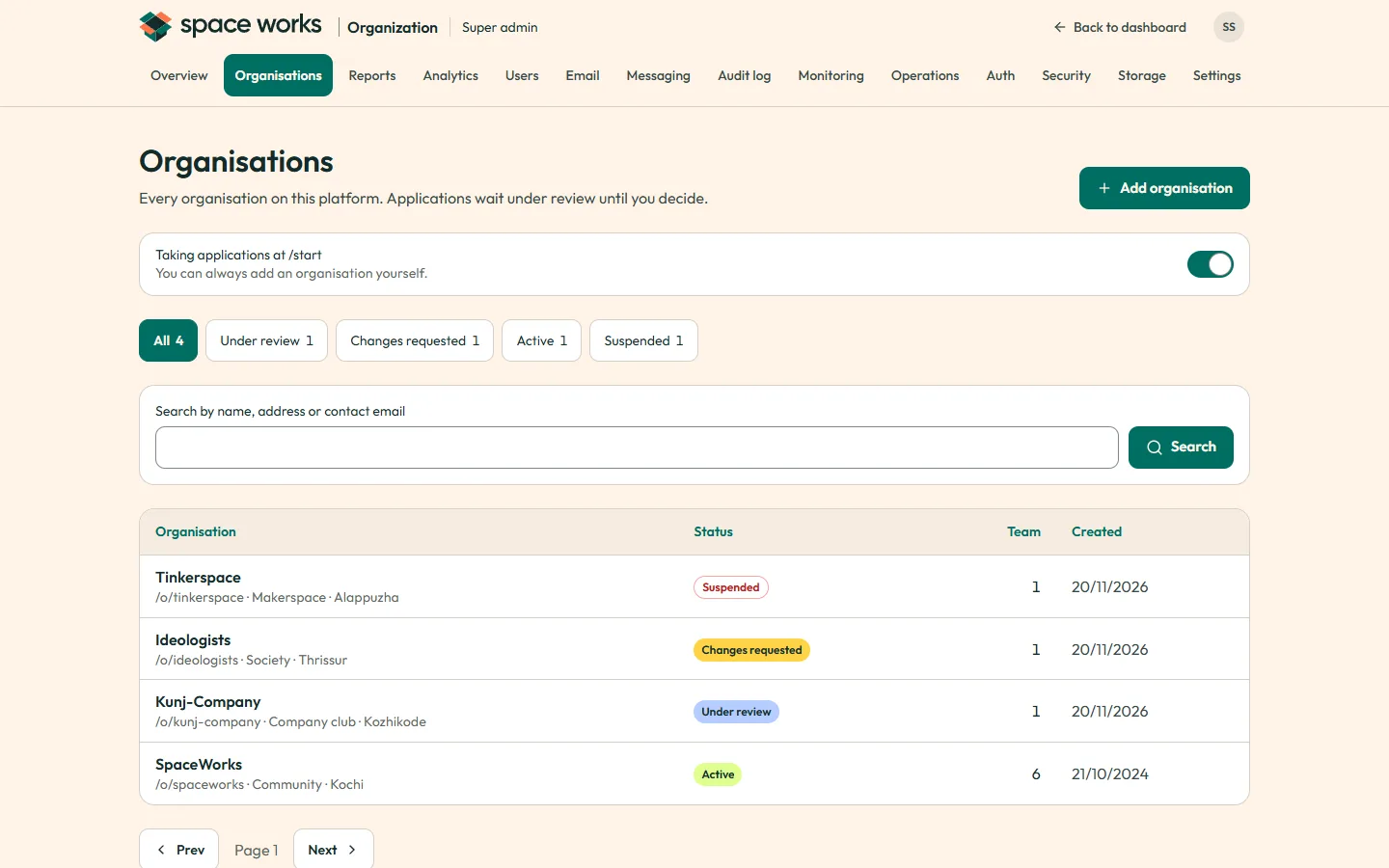
/super-admin/orgs). Filter by status, or search by name, address or contact email. - Open the organisation to see its application details, review history, team and invites.
- Choose Approve, Ask for changes or Decline. Later decisions on an active organisation are Suspend, Archive and Reactivate.
Set one up directly
Add organisation (/super-admin/orgs/new) skips the application: the organisation starts active and its owner is invited by email. The owner invite lasts two weeks, and the super admin can send a fresh one from the organisation's page while it has no owner.
Delete or hand over an organisation
- Delete organisation sits at the foot of Settings, Profile. You type the name to confirm and sign in again first. An organisation that has taken payments or has accounts entries can't be deleted, because its money records must be kept; ask the platform super admin to archive it instead. Suspended and archived organisations can't be deleted.
- Transfer ownership is on the Team page. The owner offers the organisation to someone on the team who holds their role for the whole organisation, and picks the role they keep. Nothing changes until that person accepts at
/dashboard/<slug>/ownership. An offer lasts 7 days, and there is one open offer at a time.
Note: Platform access can't transfer ownership. Only the organisation's own owner does that.
Who can use it
- Anyone with a verified account can apply. The platform super admin approves, declines, creates, suspends, archives and reactivates organisations, sets limits and decides directory listing.
- Inside an organisation, the Profile, Money and year and member account settings need
org.settings◆ (ORG_WIDE_TO_CHANGE): staff limited to a unit can read them but not change them. - Deleting the organisation needs
org.delete★ and handing it over needsownership.transfer★. Both areOWNER_ONLY, so no other role can hold them. - Every member of staff needs an authenticator app before the dashboard opens.
Turning it on or off
- Applications: the super admin opens or closes applications with the switch on Super admin, Organisations ("Taking applications at /start"). The super admin can always add an organisation directly.
- New accounts: the super admin switches new account creation on or off under Super admin, Auth, New account creation.
- Directory listing: on the organisation's page in the super-admin area, Public listing, List in the public directory. Only an active organisation can be listed.
- Limits: on the same page, Limits sets Members and Team size. Leave a field empty for no cap. Joins, imports and new members stop at the member limit, and accepting a team invite stops at the team limit.
- Member accounts, member photo upload and Look and feel (playful touches) are switches on Settings, Profile.
Screenshots
API
There is no public REST API yet. Organisation actions are server actions inside the app; the routes that are reachable from outside are listed on webhooks and endpoints. The source is on GitHub.
Related
- Units and groupings divide an organisation's members.
- Staff and roles covers the team, invites and permissions.
- Member portal explains the member accounts switch.
- Owners' manual and super admins' manual.
- Security and the audit actions list.
From SpaceWorks-Organization/docs/features/organisations.md at 7cd1441, updated 2026-11-21. Suggest a change